> For the complete documentation index, see [llms.txt](https://docs.bloxchain.app/llms.txt). Markdown versions of documentation pages are available by appending `.md` to page URLs; this page is available as [Markdown](https://docs.bloxchain.app/platform-guide/operate/signed-files.md).
# Signed files
Move a signed request or approval between devices as a `.bloxmeta.json` file, so one wallet can authorise and another can broadcast.
**Where:** Approvals → **Import signed file**; export from a signed item · **You need:** no sign-in, no relay
## What a signed file is
A signed file holds one signed meta-transaction: the operation, its parameters, the signer's signature and an expiry. It is an authorize → broadcast handoff. The person who signs does not need gas or a broadcaster role. The person who broadcasts does not need the approver's key. The chain still checks both the signature and the policy when the file is submitted.
It is not a second factor and it does not add security on its own. Think of it as a signed cheque: whoever holds it and is allowed to submit can cash it until it expires.
## When to use one
* Approve from a different device than the one that will broadcast (for example a hardware wallet on a laptop, submission from an office machine).
* No relay is available and the approver's wallet has no gas or no broadcaster role.
* You work signed out and want nothing to pass through a Bloxchain server.
## Export a signed file
1. Sign the request or approval with **Sign** in [New request](/platform-guide/operate/new-request.md) or the [Approve request](/platform-guide/operate/approvals.md#approve-or-cancel-a-request) dialog.
2. Open the item on the **Approved** tab. In the **Signed transaction** dialog choose **Share to another device**. The **Share signed request** dialog opens.
3. Tick the acknowledgement: "I understand that anyone who receives this file and can submit may broadcast it until it expires or is used."
4. Choose **Share file** (system share sheet), **Download** (saves the `.bloxmeta.json`) or **Copy JSON** (clipboard).
Send the file over a channel you trust for the value involved. Payloads never travel in URLs, and you should not paste one into a chat that is logged or public.
## Import a signed file
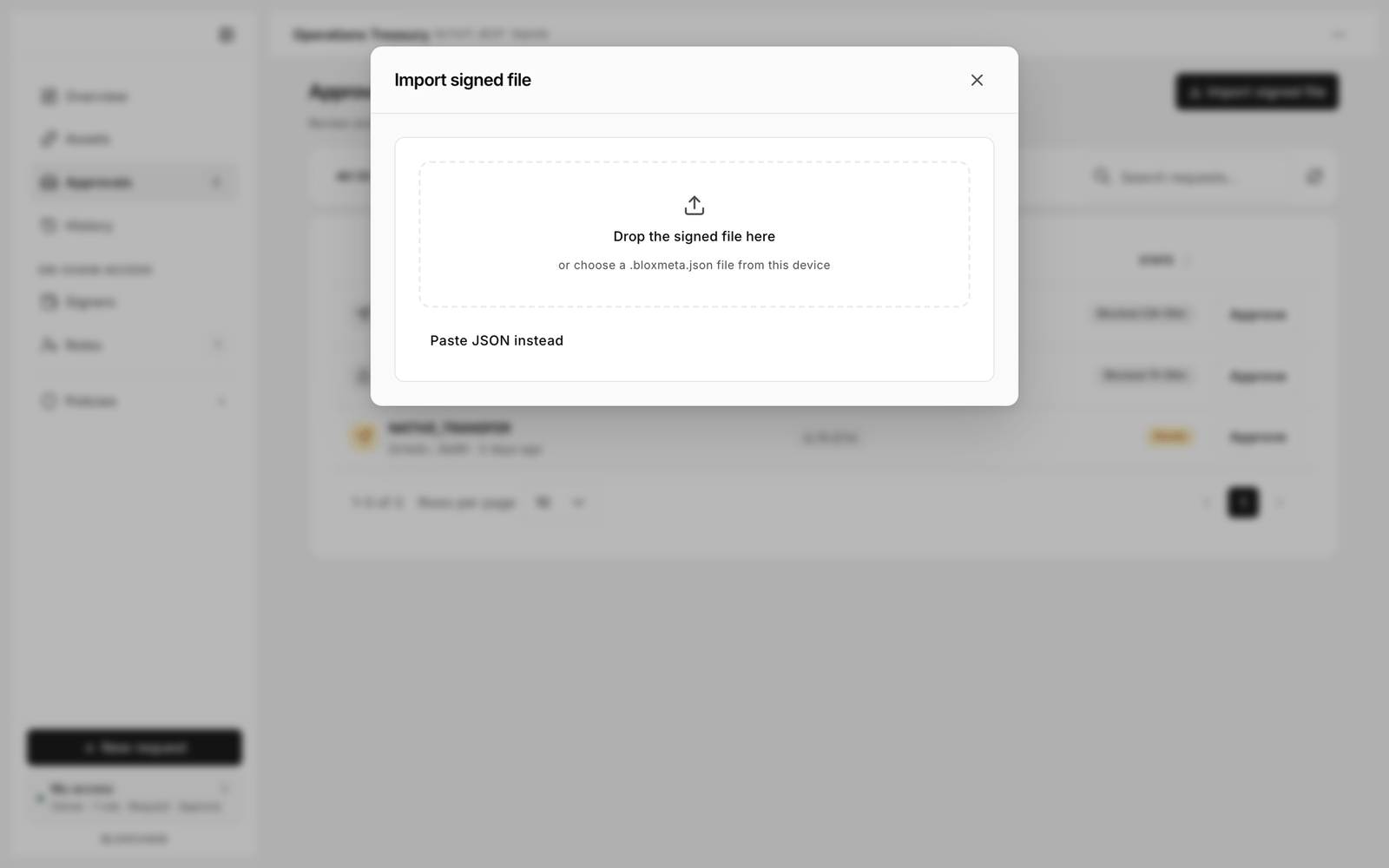
Import signed file: drop the file or paste its JSON.
1. On the receiving device, open the same account and go to **Approvals**.
2. Click **Import signed file**.
3. Drop the file into "Drop the signed file here", choose it from the device, or click **Paste JSON instead** and paste the copied text.
4. Review the preview card. It decodes the operation, target, parameters, signer and expiry so you can compare them with what you expected.
{% hint style="warning" %}
The preview says "Treat this like a signed check". Check the operation, the amount, the recipient and the signer before you continue. Once submitted, the operation is final.
{% endhint %}
5. Click **Add to Approved**. The item appears on the **Approved** tab of this browser.
## Execute it
Open the imported item and click **Execute** with a wallet that may submit: a **Broadcaster** of this account, or another role the owner allowed at the Execute step. That wallet pays gas. When the transaction confirms the operation moves to [History](/platform-guide/operate/history.md) and the item leaves Approvals.
## Let an agent prepare the file
The Platform is not the only thing that can produce a `.bloxmeta.json`. Anything holding a permitted signer key can sign a meta-transaction and write the same file, including a script, a service or an AI agent. The signer never needs gas, the **Broadcaster** role or the **Owner** key, and the account's on-chain policy still decides what that signature is allowed to do.
The review step does not change. You open **Import signed file**, check the decoded preview against what you expected, and execute it yourself. See [Agent-assisted requests](/guides/agent-assisted-requests.md) for the set-up, the least-privilege role to give the signer, and what to check before you broadcast.
## What is inside the file
A signed file is JSON. Anything that writes one, including a script or an agent, must produce this shape or the Platform refuses the import.
```json
{
"format": "bloxchain/portable-signed-meta-tx",
"version": 1,
"exportedAt": "2026-09-14T09:12:04.000Z",
"presentation": {
"title": "Approve transfer of 0.75 ETH",
"summary": "0.75 ETH to 0x90F8...c9C1",
"operationName": "NATIVE_TRANSFER",
"workflowPath": "Signed approval",
"signerRole": "TREASURY_APPROVER"
},
"context": {
"chainId": 11155111,
"verifyingContract": "0x7a1F...8C2F",
"signer": "0x4e8b...6e80",
"txId": "104",
"deadline": 1757840000
},
"payload": { "...": "the signed meta-transaction, with every number as a decimal string" }
}
```
`payload` is the signed meta-transaction itself and is the only part that matters on chain. `context` is what the importing device checks against the account you have open: a file for another chain or another account is rejected rather than queued. `presentation` is display text only. It is written by whoever exported the file and is never used to decide whether the payload may run, so read the decoded payload in the preview rather than the title when you are deciding to submit.
Import fails outright when the format or version is unrecognised, when the JSON is malformed, when the payload has no signature, when the chain or contract does not match the account you have open, or when the deadline has passed. A payload with no deadline is valid and imports with a warning.
## Safety rules
* **Bearer file.** Possession plus a permitted wallet is enough to broadcast. Store it like a private document and delete it after use.
* **Deadline.** Every signed file expires (the default is one hour from signing). Import and execute well before then; an expired file cannot be revived, only re-signed.
* **Invalidate if leaked.** There is no "revoke all signatures" button. A leaked signature stops being usable when its deadline passes or when the signer's next meta-transaction consumes the nonce. An owner can also remove the signer from the role.
* **Never in URLs.** Do not embed payloads in links or QR codes you share; the Platform does not either.
* **Verify the preview** against the request you meant to approve, every time.
## Limitations
* Mobile share sheets are not documented as supported. Use **Download** or **Copy JSON** on mobile.
* The imported item lives in the browser that imported it. Clearing site data removes it (the signature is unaffected).
## Related
* [Cross-device approval guide](/guides/cross-device-approval.md)
* [Ways to configure an account](/guides/ways-to-configure.md)
* [Security best practices](/security/security-best-practices.md)
* [Meta-transactions (Protocol)](/protocol-reference/api-reference/meta-transactions.md)
---
# Agent Instructions
This documentation is published with GitBook. GitBook is the documentation platform designed so that both humans and AI agents can read, navigate, and reason over technical content effectively. Learn more at gitbook.com.
## Querying This Documentation
If you need additional information that is not directly available in this page, you can query the documentation by asking a question.
Perform an HTTP GET request on the following URL with the `ask` and `goal` query parameters:
```
GET https://docs.bloxchain.app/platform-guide/operate/signed-files.md?ask=&goal=
```
`ask` is the immediate question: it should be specific, self-contained, and written in natural language.
`goal` is what the user is ultimately trying to achieve, the reason they need the answer. Sharing it helps GitBook give you a better, more relevant answer. A goal is most helpful when it describes the outcome the user wants rather than restating the question. For example, with `ask=how do I create an API token`, a goal like `automate deployments from our CI pipeline` lets GitBook tailor the answer to that use case.
The response will contain a direct answer to the question and relevant excerpts and sources from the documentation.
Use this mechanism when the answer is not explicitly present in the current page, you need clarification or additional context, or you want to retrieve related documentation sections.