> For the complete documentation index, see [llms.txt](https://docs.bloxchain.app/llms.txt). Markdown versions of documentation pages are available by appending `.md` to page URLs; this page is available as [Markdown](https://docs.bloxchain.app/platform-guide/operate/approvals.md).

# Approvals

Review open requests, approve or cancel them, and execute signed transactions that are ready to go on-chain. Anyone may read the queue. Acting on a request needs a role that covers that step.

**Where:** Account → Approvals

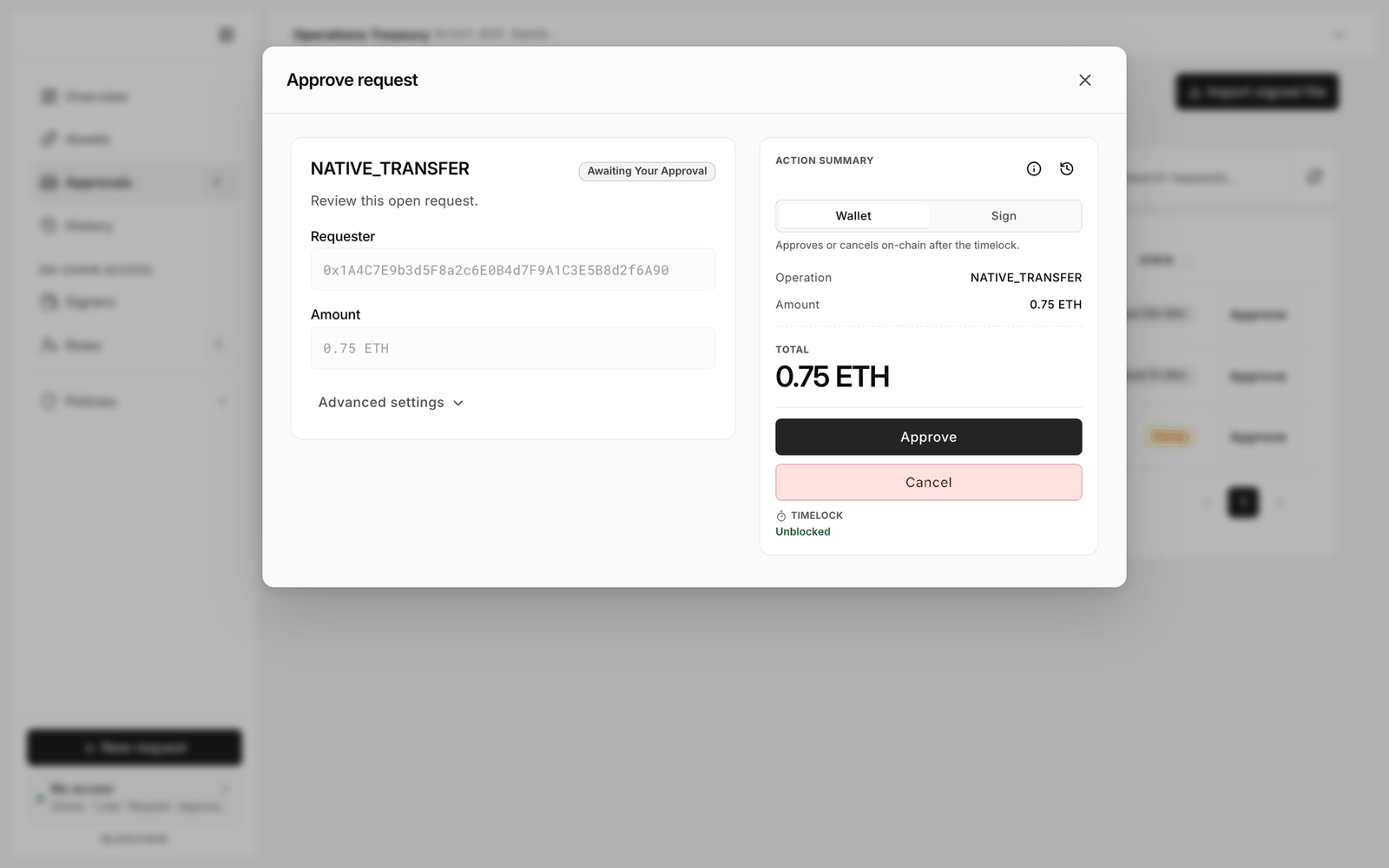
<figure><img src="https://2633730519-files.gitbook.io/~/files/v0/b/gitbook-x-prod.appspot.com/o/spaces%2F0GcVTQuj6X0G3RZ3YY7r%2Fuploads%2Fgit-blob-f07c2af3d8a8cdf1c7c2bb346e43108126df891f%2F22-approvals.png?alt=media" alt="Approvals page with All, Pending and Approved tabs and three open requests, two blocked by the time lock and one marked Ready" width="1000"><figcaption><p>Three open requests. Two are still inside the time lock and show how long is left; the third reads Ready, so it can be approved now.</p></figcaption></figure>

## What is in the queue

Approvals shows two kinds of item until they are finalised on-chain:

* **On-chain pending requests** posted with **Wallet**. They wait for the time lock, then for an approval or cancellation.
* **Stored signed transactions** created with **Sign**, or imported from a [signed file](/platform-guide/operate/signed-files.md). They wait for someone to submit them before they expire.

When there is nothing open the page reads "Nothing open — On-chain requests and off-chain signed payloads appear here until they are finalized on-chain."

## Tabs, columns and filters

| Tab              | Contents                                                   |
| ---------------- | ---------------------------------------------------------- |
| **All (n)**      | Everything open                                            |
| **Pending (n)**  | On-chain requests waiting for the time lock or an approval |
| **Approved (n)** | Signed transactions waiting for an **Execute**             |

| Column        | Meaning                                                                                 |
| ------------- | --------------------------------------------------------------------------------------- |
| **Operation** | Action name, requester address and age                                                  |
| **Change**    | The decoded effect (amount and asset) where the Platform can decode it, otherwise "—"   |
| **State**     | Time-lock chip: **Blocked** , **left** / **Ready**, **Cancel · left**, **Expired**      |
| Action button | **Approve**, **Execute**, **Delete** or **View**, depending on the item and your wallet |

The tabs above and the search box are the only controls that narrow this list; the search box matches on operation and requester.

## Approve or cancel a request

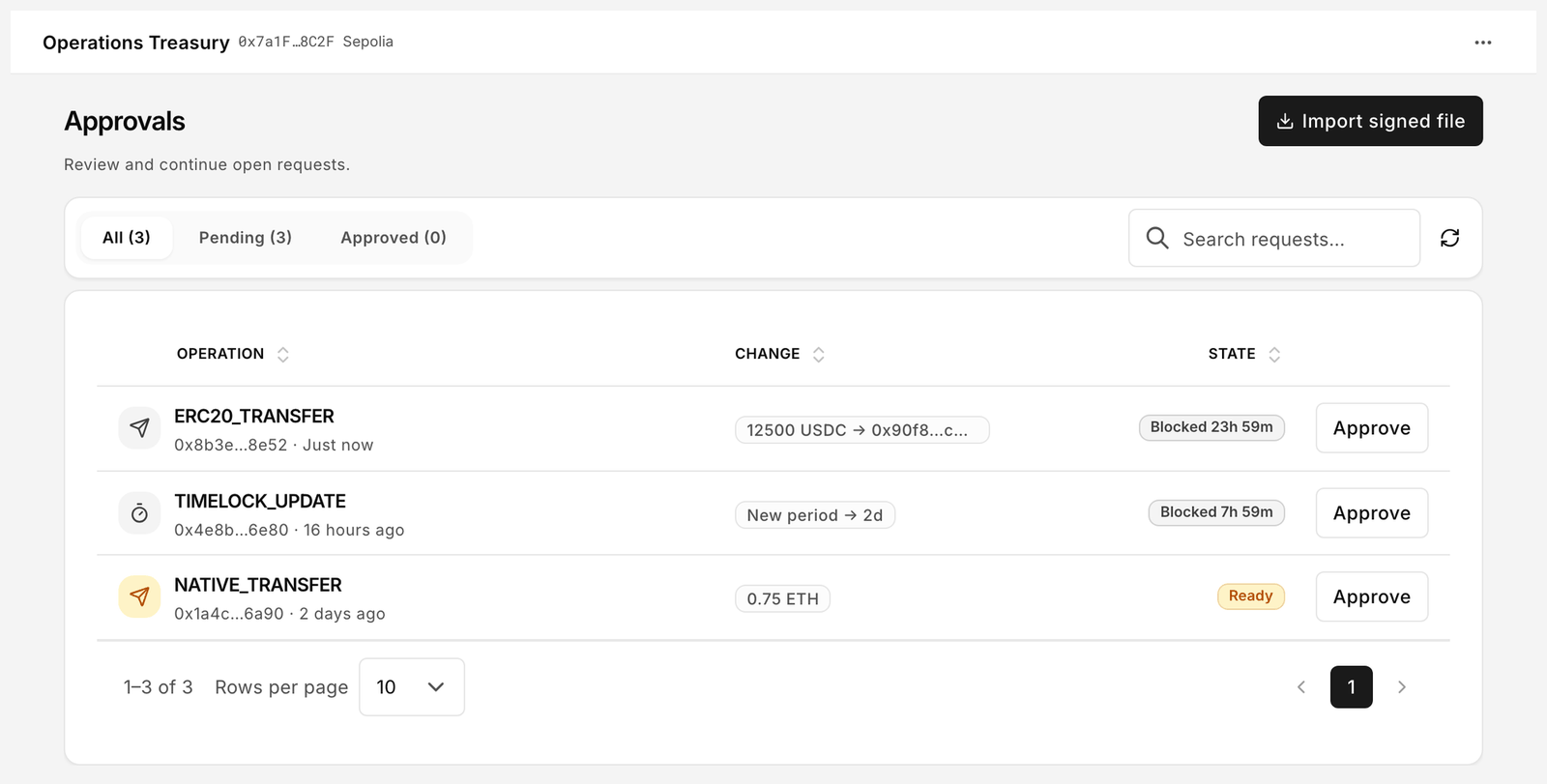
<figure><img src="https://2633730519-files.gitbook.io/~/files/v0/b/gitbook-x-prod.appspot.com/o/spaces%2F0GcVTQuj6X0G3RZ3YY7r%2Fuploads%2Fgit-blob-65d49e631b67dae23e76ec0036360b68687303f8%2F23-approve-request.png?alt=media" alt="Approve request dialog for a Native transfer showing Awaiting Your Approval, the requester address, the Wallet and Sign toggle, enabled Approve and Cancel buttons, and TIMELOCK Unblocked" width="1000"><figcaption><p>The Approve request dialog once the time lock has passed. TIMELOCK reads Unblocked, so Approve and Cancel are both live.</p></figcaption></figure>

1. Click a **Pending** row. The **Approve request** dialog opens with the status chip (for example **Awaiting Approval**).
2. Check **Requester** and the decoded parameters. **Advanced settings** exposes gas overrides.
3. In **ACTION SUMMARY**, pick a method:
   * **Wallet**: "Approves or cancels on-chain after the timelock." Your wallet sends the approval transaction and the operation executes in the same step.
   * **Sign**: signs an approval or cancellation as a meta-transaction. A broadcaster submits it (the **Signed approval** path).
4. Watch **TIMELOCK**. **Blocked** means the delay has not run; **Approve** stays disabled. **Unblocked** means you may proceed. **Cancel** is available during the block for roles that may cancel.
5. Click **Approve** or **Cancel** and confirm in your wallet.

The dialog offers three views: **Summary** (what you see first), **Details** (raw parameters, selectors, target) and **Activity** (the timeline of request, approval and execution events).

If your wallet is not permitted, the card says "This wallet cannot approve or cancel with Wallet or Sign for this request. Check roles or try another wallet."

## Execute a signed transaction

Rows on the **Approved** tab open the **Signed transaction** dialog.

* **Execute** submits the signed payload on-chain. Your connected wallet must be allowed to submit: a **Broadcaster**, or another role the owner permitted at the Execute step. It pays the gas.
* **Delete** "removes it from local storage only". The signature itself is unaffected; if a copy exists elsewhere it can still be submitted until it expires.
* An expired item shows "Expired. Execution disabled. Delete this invalid entry."

Signed transactions are stored in this browser. To move one to another device, use the export and **Import signed file** flow described in [Signed files](/platform-guide/operate/signed-files.md).

## Status label reference

| Label                            | Meaning                                             |
| -------------------------------- | --------------------------------------------------- |
| **New**                          | Request created locally, not yet posted or signed   |
| **Awaiting Approval**            | On-chain, waiting for an approver                   |
| **Awaiting Your Approval**       | Same, and your connected wallet may approve         |
| **Approved**                     | Approval signed, waiting for submission             |
| **Cancelled**                    | Cancelled on-chain; nothing will execute            |
| **Expired**                      | Signature deadline passed; must be redone           |
| **Ready to Execute**             | Signed payload can be submitted now                 |
| **Ready to Submit Cancellation** | Signed cancellation can be submitted now            |
| **Executing**                    | Execution transaction sent, waiting for the block   |
| **Executed**                     | Operation completed on-chain                        |
| **Submitting**                   | Signed payload is being broadcast                   |
| **Pending Confirmation**         | Transaction in the mempool or too few confirmations |
| **Confirmed**                    | Transaction confirmed on-chain                      |
| **Failed**                       | Transaction reverted; see History for the hash      |

Row-level status text uses shorter phrases: **Waiting Period**, **Awaiting Approval**, **Execution Ready**.

## Related

* [New request](/platform-guide/operate/new-request.md)
* [History](/platform-guide/operate/history.md)
* [Cross-device approval guide](/guides/cross-device-approval.md)
* [Troubleshooting](/resources/troubleshooting.md)


---

# Agent Instructions
This documentation is published with GitBook. GitBook is the documentation platform designed so that both humans and AI agents can read, navigate, and reason over technical content effectively. Learn more at gitbook.com.

## Querying This Documentation
If you need additional information that is not directly available in this page, you can query the documentation by asking a question.

Perform an HTTP GET request on the following URL with the `ask` and `goal` query parameters:

```
GET https://docs.bloxchain.app/platform-guide/operate/approvals.md?ask=<question>&goal=<user_goal>
```

`ask` is the immediate question: it should be specific, self-contained, and written in natural language.
`goal` is what the user is ultimately trying to achieve, the reason they need the answer. Sharing it helps GitBook give you a better, more relevant answer. A goal is most helpful when it describes the outcome the user wants rather than restating the question. For example, with `ask=how do I create an API token`, a goal like `automate deployments from our CI pipeline` lets GitBook tailor the answer to that use case.

The response will contain a direct answer to the question and relevant excerpts and sources from the documentation.

Use this mechanism when the answer is not explicitly present in the current page, you need clarification or additional context, or you want to retrieve related documentation sections.