> For the complete documentation index, see [llms.txt](https://docs.bloxchain.app/llms.txt). Markdown versions of documentation pages are available by appending `.md` to page URLs; this page is available as [Markdown](https://docs.bloxchain.app/platform-guide/connect-wallet.md).

# Connect a wallet

Connect a browser wallet so you can sign requests, approvals and configuration changes in the Bloxchain Platform.

**Where:** top bar → **Connect wallet** · **You need:** a wallet on Sepolia with a little test ETH for gas

## Supported wallets

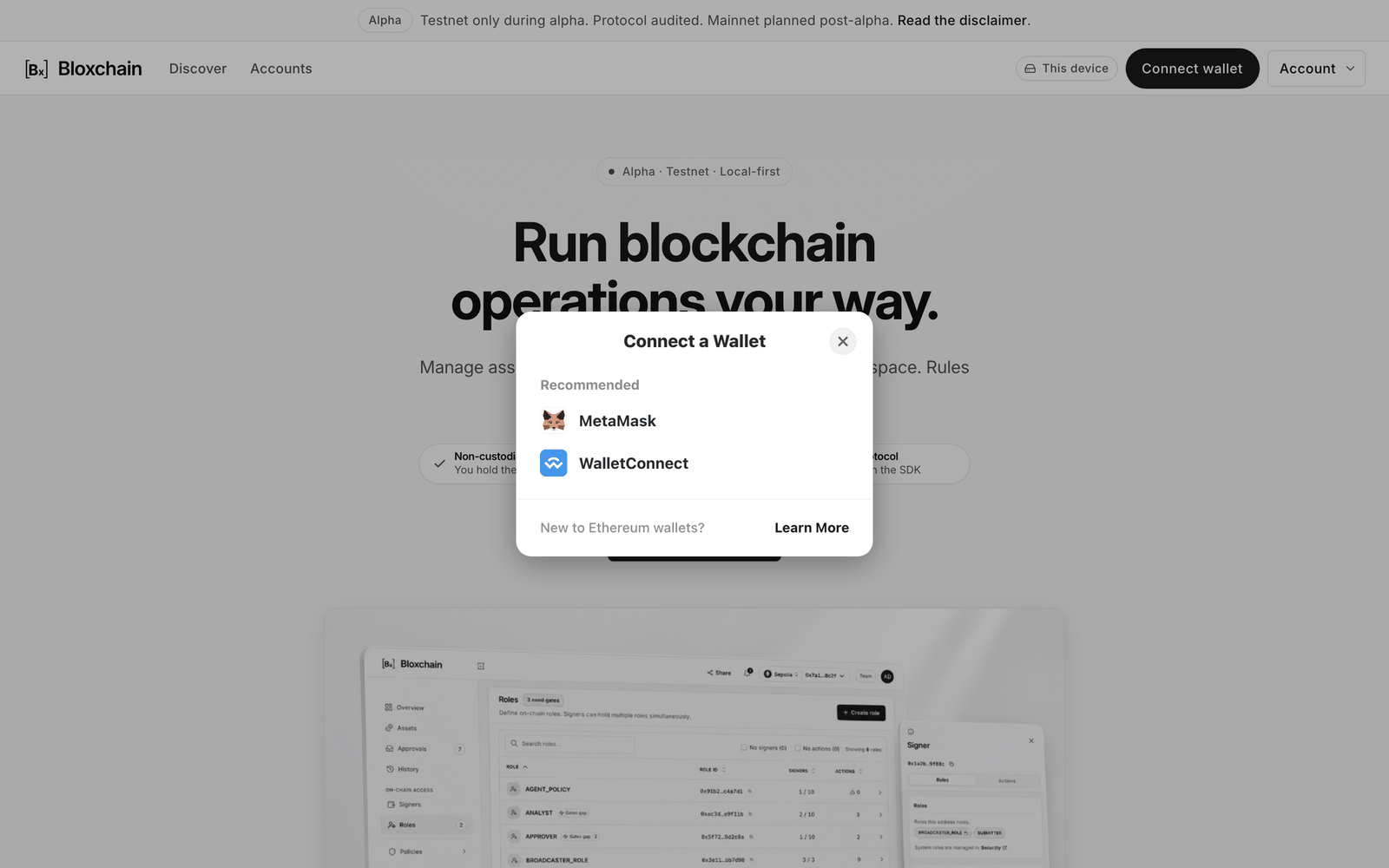
* **MetaMask** browser extension, on desktop browsers.
* **WalletConnect**, to pair a mobile wallet or a hardware-backed wallet by scanning a code.

Both appear under **Recommended** in the chooser.

The Platform never holds a key. Every signature happens in your wallet, and gas is paid from your wallet.

## Button states

| State             | What you see                                                    | Meaning                                                                                                   |
| ----------------- | --------------------------------------------------------------- | --------------------------------------------------------------------------------------------------------- |
| Not connected     | **Connect wallet**                                              | Reads work. Signing does not.                                                                             |
| Connected         | A network pill (for example **Sepolia**) and your short address | You can sign and submit.                                                                                  |
| Unsupported chain | **Wrong network**                                               | The wallet is on a chain the Platform does not know. Switch in the wallet or add the network in Settings. |

## Steps

<figure><img src="https://2633730519-files.gitbook.io/~/files/v0/b/gitbook-x-prod.appspot.com/o/spaces%2F0GcVTQuj6X0G3RZ3YY7r%2Fuploads%2Fgit-blob-d6eb66609dba4c4df2e31647de4fa732e48c844c%2F17-connect-wallet-dialog.png?alt=media" alt="Connect a Wallet dialog listing MetaMask under a Recommended heading, with a New to Ethereum wallets link to Learn More" width="1000"><figcaption><p>The wallet chooser. MetaMask connects a browser extension on this device; WalletConnect pairs a wallet on another device by scanning a code.</p></figcaption></figure>

1. Click **Connect wallet** in the top bar.
2. Choose your wallet and approve the connection request in the wallet.
3. If the wallet is not on Sepolia, switch it. The button shows **Wrong network** until you do.
4. The button now shows the network pill and your address. Open an account from **Accounts**.

## Switching networks

The Platform follows your wallet. When you change the chain in the wallet, the pill updates and the Deploy dialog locks to the new chain ("Uses your connected wallet network"). Custom networks you add in [Settings → Networks](/platform-guide/settings/networks.md) are offered to the wallet when you switch to an account on that chain. Reads do not go through your wallet's RPC. The Platform reads over its own HTTPS endpoints for the chain, and on a custom network over the RPC URL you saved in Settings. Your wallet's provider is used only when you send a transaction.

## Without a wallet vs with a wallet

| Without a wallet                                    | With a wallet                                                               |
| --------------------------------------------------- | --------------------------------------------------------------------------- |
| Open any account link read-only                     | Everything on the left, plus                                                |
| See balances, roles, actions, approvals and history | Deploy or import accounts                                                   |
| Browse Discover and Marketplace                     | Start requests, approve, execute, sign meta-transactions                    |
| Import a backup                                     | Change security, roles, actions, gates and allowlists (if your roles allow) |

The **My access** card in the rail reads "Connect wallet to view" until a wallet is connected.

## Auto-reconnect

When you return to bloxchain.app the Platform asks the wallet to restore the last connection. If the wallet allows it, you are connected without a prompt. If the wallet has locked or you revoked the site permission, the button returns to **Connect wallet**.

## Status footer inside an account

<figure><img src="https://2633730519-files.gitbook.io/~/files/v0/b/gitbook-x-prod.appspot.com/o/spaces%2F0GcVTQuj6X0G3RZ3YY7r%2Fuploads%2Fgit-blob-6e9f7657dd68fa82e940468f4a5c0351b196c7fe%2F09-status-footer.png?alt=media" alt="The status footer at the bottom of an account reading Connect a wallet to sign. Reads still work." width="1000"><figcaption><p>The status footer tells you whether you can sign right now.</p></figcaption></figure>

| Footer message                                | Meaning                                               |
| --------------------------------------------- | ----------------------------------------------------- |
| "Connect a wallet to sign. Reads still work." | No wallet connected.                                  |
| "Switch to Sepolia"                           | The wallet is on a different chain from this account. |
| "Cannot reach this network right now…"        | The RPC for this account's network is not responding. |

## Troubleshooting

| Symptom                                                                     | Fix                                                                                                      |
| --------------------------------------------------------------------------- | -------------------------------------------------------------------------------------------------------- |
| Nothing happens when I click **Connect wallet**                             | Unlock the wallet extension, then click again. Check that the extension is allowed on this site.         |
| **Wrong network** will not go away                                          | Switch the wallet to Sepolia. For a custom chain, add it in Settings → Networks first.                   |
| Connected, but **My access** says no roles                                  | Your address holds no role on this account. Ask an admin to add you under Signers.                       |
| "This wallet cannot start a request with Wallet or Sign for this function." | Your role lacks the Request step for that action. See [My access](/platform-guide/operate/my-access.md). |
| The address shown is not the one I expected                                 | Switch the active account inside the wallet. The Platform follows the wallet's selected account.         |

## Related

* [Accounts](/platform-guide/accounts.md)
* [Troubleshooting](/resources/troubleshooting.md)
* [Supported networks](/introduction/supported-networks.md)


---

# Agent Instructions
This documentation is published with GitBook. GitBook is the documentation platform designed so that both humans and AI agents can read, navigate, and reason over technical content effectively. Learn more at gitbook.com.

## Querying This Documentation
If you need additional information that is not directly available in this page, you can query the documentation by asking a question.

Perform an HTTP GET request on the following URL with the `ask` and `goal` query parameters:

```
GET https://docs.bloxchain.app/platform-guide/connect-wallet.md?ask=<question>&goal=<user_goal>
```

`ask` is the immediate question: it should be specific, self-contained, and written in natural language.
`goal` is what the user is ultimately trying to achieve, the reason they need the answer. Sharing it helps GitBook give you a better, more relevant answer. A goal is most helpful when it describes the outcome the user wants rather than restating the question. For example, with `ask=how do I create an API token`, a goal like `automate deployments from our CI pipeline` lets GitBook tailor the answer to that use case.

The response will contain a direct answer to the question and relevant excerpts and sources from the documentation.

Use this mechanism when the answer is not explicitly present in the current page, you need clarification or additional context, or you want to retrieve related documentation sections.
