> For the complete documentation index, see [llms.txt](https://docs.bloxchain.app/llms.txt). Markdown versions of documentation pages are available by appending `.md` to page URLs; this page is available as [Markdown](https://docs.bloxchain.app/guides/personal-security.md).

# Personal security account

Set up a smart account for one person where any transfer you did not mean can be cancelled while it is still waiting to settle.

**Where:** Discover → Personal security, then Policies and On-chain access · **You need:** a daily wallet and a hardware (cold) wallet, both on Sepolia, with test ETH in the daily wallet

## Goal

Your daily wallet can start a transfer, but nothing leaves the account until a time lock has passed and you approve it with a second wallet. If a phishing site or a compromised browser starts a transfer, you see it in **Approvals** as **Blocked** and cancel it before it can execute.

## Who is involved

| Duty                                       | Wallet                                   | Example       |
| ------------------------------------------ | ---------------------------------------- | ------------- |
| Owner (approves or cancels)                | Hardware wallet                          | `0x3B9d…A41e` |
| Requester (starts transfers)               | Daily browser wallet                     | `0x8C4e…21bB` |
| Broadcaster (submits signed transactions)  | A separate hot wallet                    | `0x5E60…c7D1` |
| Recovery (takes ownership in an emergency) | A second cold wallet or a trusted person | `0xF01c…9aB4` |

Time: about 30 minutes on Sepolia.

## Before you start

* Get Sepolia test ETH into the wallet that will deploy (the owner wallet pays gas for the deploy).
* Decide your time lock. One day is a good default: long enough to notice a transfer, short enough for daily use.
* Owner and Recovery must be different addresses. Broadcasters must also be different from the owner.

## Phase 1: Deploy the account

1. Open **Discover** and choose **Personal security**. Select **Set up Personal Security**.
2. In **Deploy Smart Account**, enter an **Account name** (for example `Personal Vault`). The **Network** is read from your connected wallet. Select **Continue**.
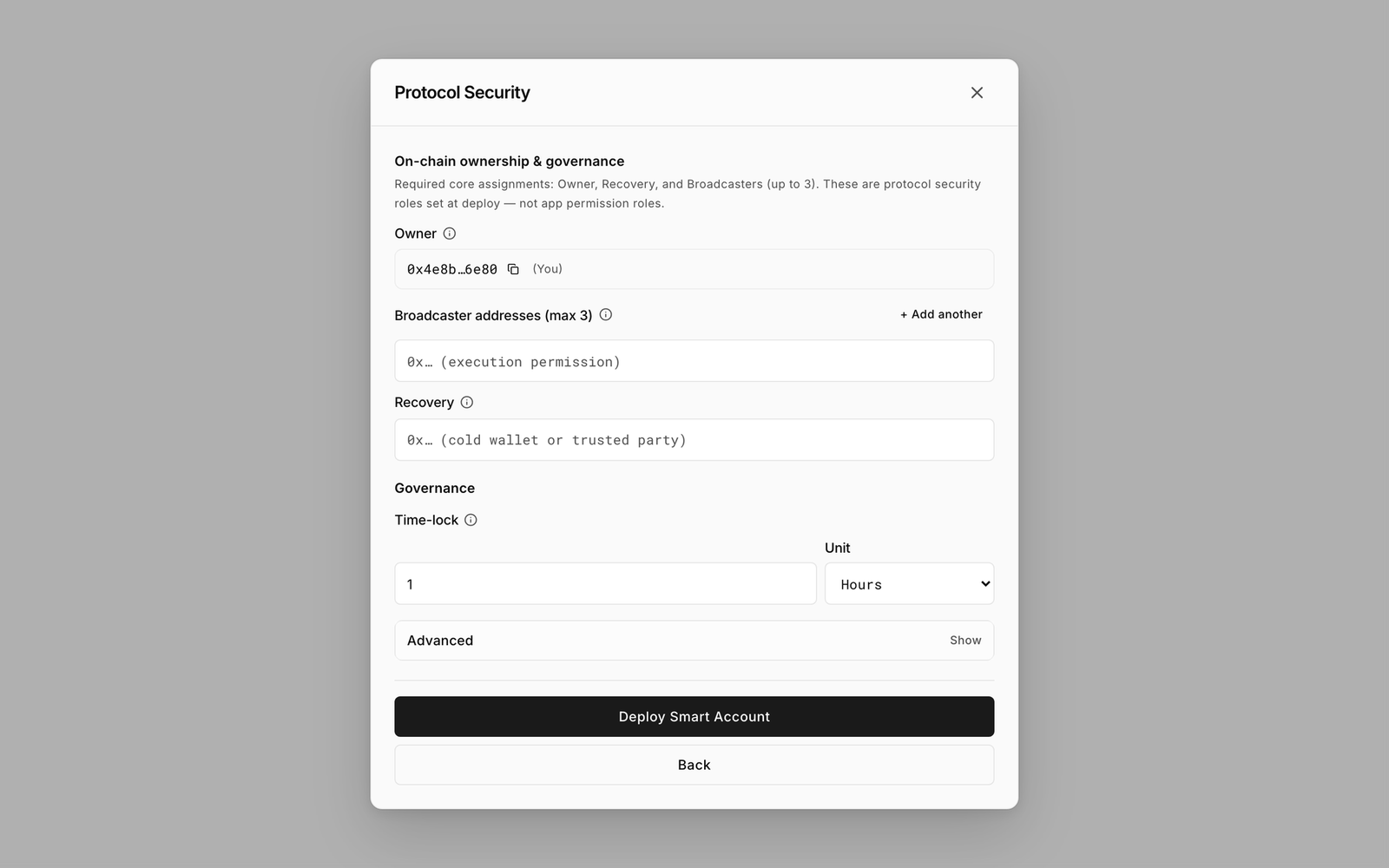
3. On **Protocol Security**, set:
   * **Owner**: your hardware wallet address.
   * **Broadcaster addresses**: your separate hot wallet. Use **+ Add another** only if you want more than one.
   * **Recovery**: your cold-wallet or trusted-party address.
   * **Time-lock** `1` and **Unit** `Days`.
4. Leave **Advanced** as it is. Select **Deploy Smart Account** and confirm in your wallet.

<figure><img src="https://2633730519-files.gitbook.io/~/files/v0/b/gitbook-x-prod.appspot.com/o/spaces%2F0GcVTQuj6X0G3RZ3YY7r%2Fuploads%2Fgit-blob-8ccce1efe07ba44bba15288f6ec51c737e3d92cf%2F08-deploy-account-step2.png?alt=media" alt="Deploy Smart Account step 2, Protocol Security, with Owner, Broadcaster addresses, Recovery and Time-lock fields" width="1000"><figcaption><p>Protocol Security: the three protected roles and the time lock are set at deploy.</p></figcaption></figure>

The account lands as a **Vault**. It can receive assets but cannot send anything yet. That is the intended starting state ([why](/platform-guide/policies/actions.md#what-a-new-account-already-has)).

## Phase 2: Check Security

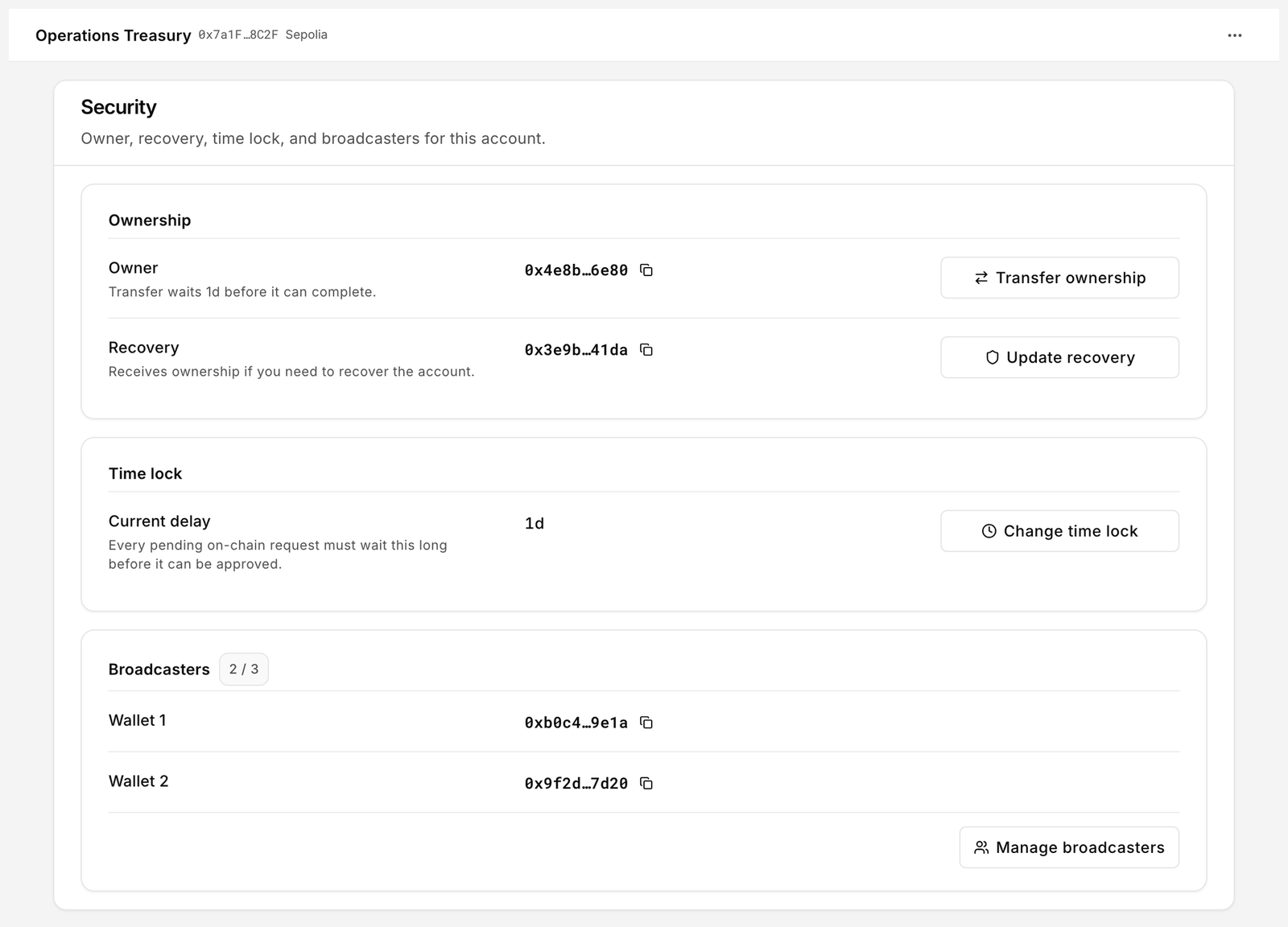
1. Inside the account, open **Policies** → **Security**.
2. Confirm **Owner**, **Recovery**, **Time lock** (`1d`) and **Broadcasters** are what you set.
3. If you skipped Recovery at deploy, select **Set recovery** now and sign.

<figure><img src="https://2633730519-files.gitbook.io/~/files/v0/b/gitbook-x-prod.appspot.com/o/spaces%2F0GcVTQuj6X0G3RZ3YY7r%2Fuploads%2Fgit-blob-5c4c067fcf033d03505a8bfb2f8560e68097bc92%2F31-security.png?alt=media" alt="Policies Security page showing Owner, Recovery, Time lock and Broadcasters" width="1000"><figcaption><p>Security is the baseline every other policy builds on.</p></figcaption></figure>

## Phase 3: Confirm the transfer actions

1. Open **Policies** → **Actions**.
2. Confirm `NATIVE_TRANSFER` (`__bloxchain_native_transfer__()`) is listed. It is registered on every account at deploy, so there is nothing to add.
3. If you hold ERC-20 tokens, confirm `ERC20_TRANSFER` (`transfer(address,uint256)`) is listed too. It is registered at deploy as well.
4. Both rows read **Flow incomplete**. That is expected on a new account: the functions exist, but no role may use them and no recipient is allowed yet. Permissions, gates and the allowlist are the next three phases.

**Add action** is only for functions of your own, such as `mint(address,uint256)` on a token you govern. You do not need it here.

## Phase 4: Create a requester role

1. Open **On-chain access** → **Roles** and select **Create role**.
2. **Role name** `Daily Requester`, **Max wallets** `1`. Save and sign.
3. Open the new role and select **Manage role signers**. Add your daily wallet `0x8C4e…21bB`.

Keep the **Owner** role on your hardware wallet. It does not need a custom role: the owner approves and cancels delayed requests.

## Phase 5: Assign permissions and gates

1. Back in **Policies** → **Actions**, open `NATIVE_TRANSFER` and select **Manage permissions**.
2. On the **Delayed release** tab, at the **Request** step select **Assign role** and choose `Daily Requester`. Leave the **Approval** steps with **Owner**. Do not assign anything on the **Signed approval** or **One signature** tabs.
3. Review and sign. Repeat for `ERC20_TRANSFER` if you hold tokens.
4. Open **Policies** → **Gates**. Under **Needs attention**, select **Edit**, grant the gate for `Daily Requester`, then confirm in **Update gates** and sign.

{% hint style="info" %}
Gates are permanent for a role. If you ever want to revoke the daily wallet completely, remove the `Daily Requester` role in Roles; that clears its gates.
{% endhint %}

## Phase 6: Allowlist recipients

1. Open **Policies** → **Allowed recipients** and select **Add recipient**.
2. Add the addresses you actually pay: your exchange deposit address, a friend, your other wallet. Sign the batch.

An empty list means no transfer can be requested at all. Only allowlisted addresses appear in the **Recipient** picker of a new request.

## Phase 7: Test it with the daily wallet

1. Send a little Sepolia ETH to the account (**Assets** → **Receive**).
2. Connect the daily wallet. Select **New request** → **Transfer**, pick the native asset, a small **Amount**, and an allowlisted **Recipient**. Select **Submit request** (the **Wallet** path) and confirm.
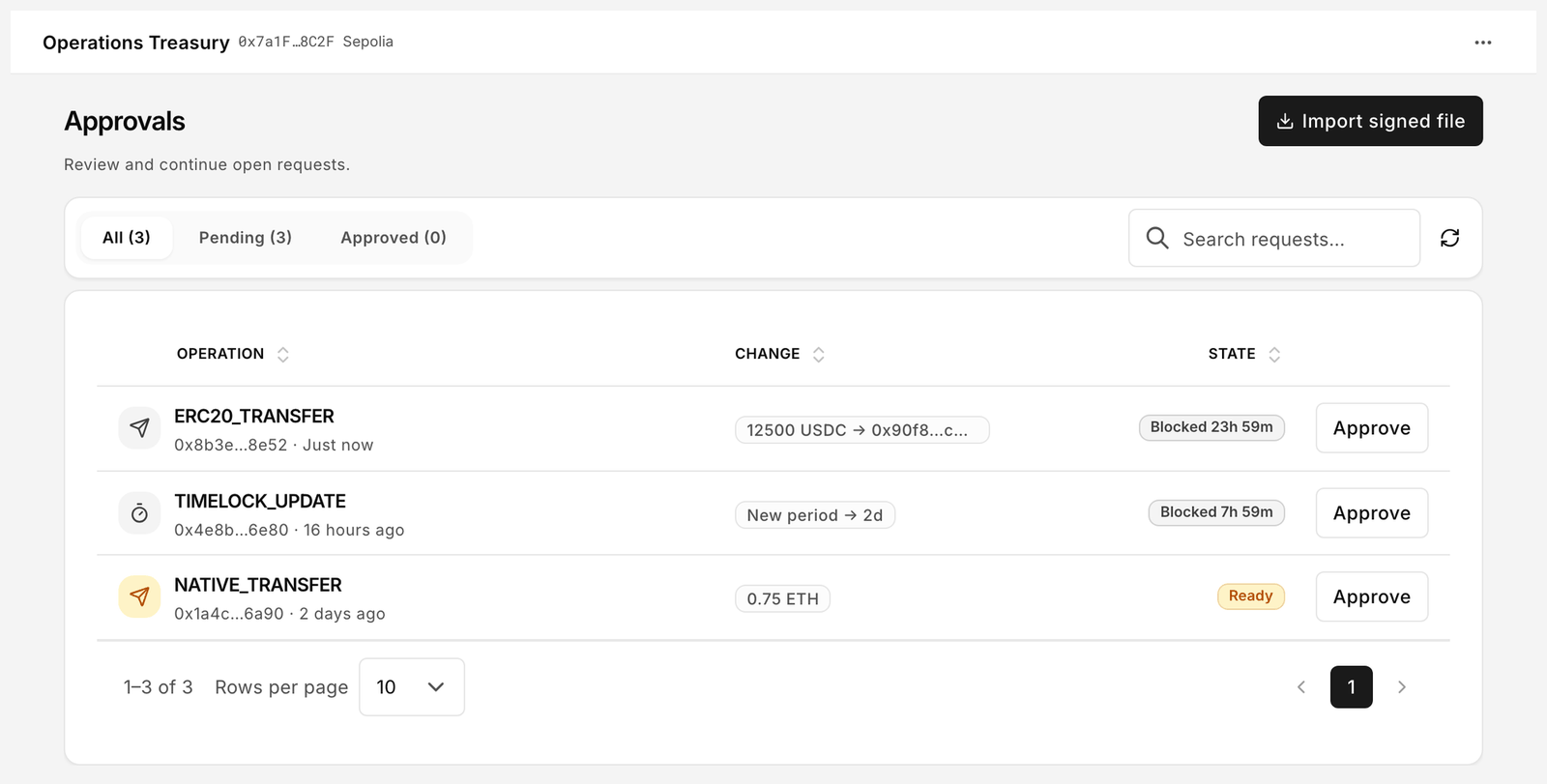
3. Open **Approvals**. The row shows **Blocked 1d** in the **State** column. This is the window in which you would notice a transfer you did not start.

<figure><img src="https://2633730519-files.gitbook.io/~/files/v0/b/gitbook-x-prod.appspot.com/o/spaces%2F0GcVTQuj6X0G3RZ3YY7r%2Fuploads%2Fgit-blob-f07c2af3d8a8cdf1c7c2bb346e43108126df891f%2F22-approvals.png?alt=media" alt="Approvals list with one pending transfer in the Blocked state" width="1000"><figcaption><p>A delayed request waits in Approvals until the time lock passes.</p></figcaption></figure>

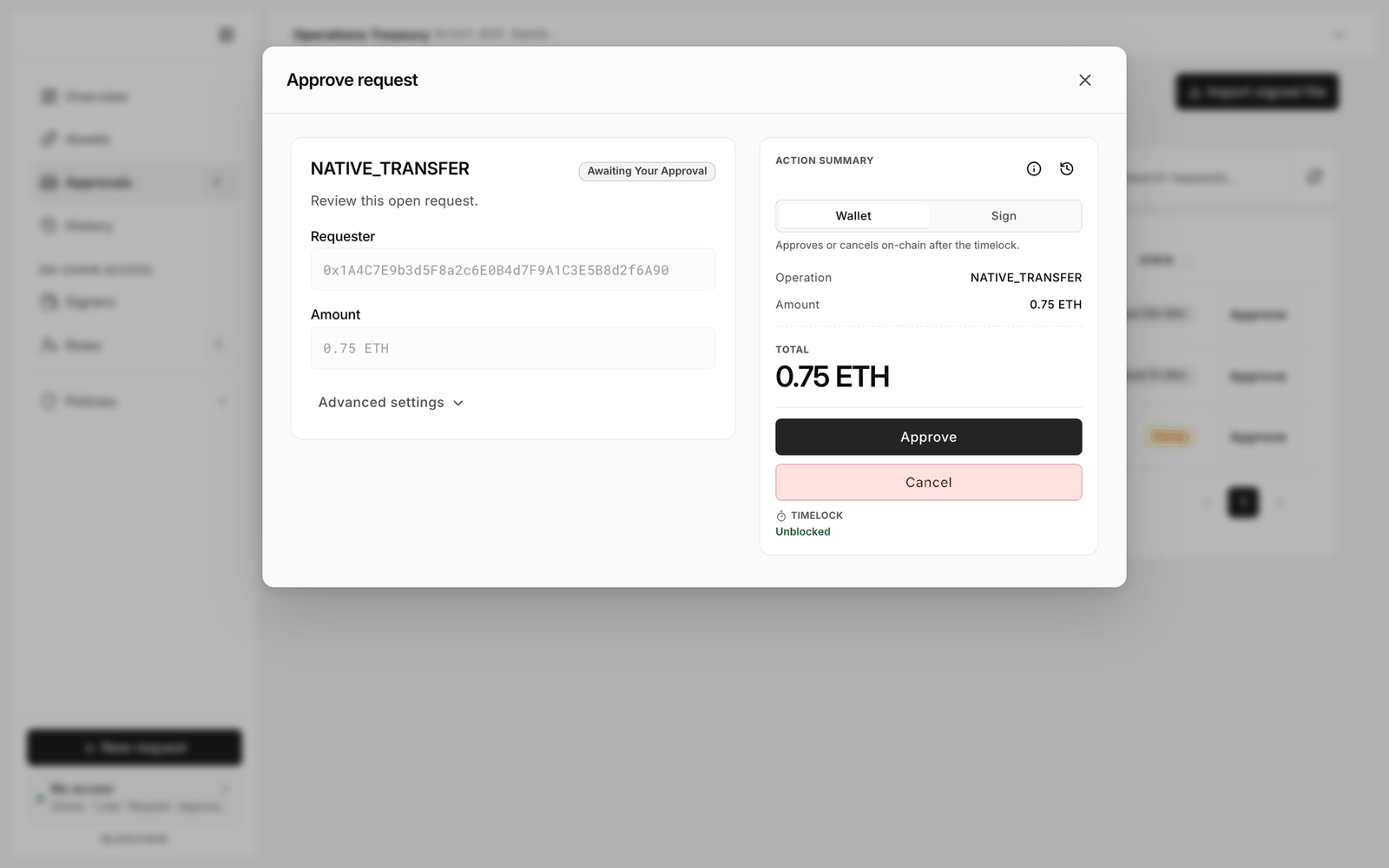
4. Now practise cancelling. Switch to the hardware wallet, open the row, and in **Approve request** select **Cancel**. Confirm in your wallet. The request moves to **History** as **Cancelled**.

<figure><img src="https://2633730519-files.gitbook.io/~/files/v0/b/gitbook-x-prod.appspot.com/o/spaces%2F0GcVTQuj6X0G3RZ3YY7r%2Fuploads%2Fgit-blob-65d49e631b67dae23e76ec0036360b68687303f8%2F23-approve-request.png?alt=media" alt="Approve request dialog with Approve and Cancel buttons and the TIMELOCK status" width="1000"><figcaption><p>Cancel is available while the request is blocked; Approve unlocks when the time lock has passed.</p></figcaption></figure>

5. Repeat step 2 with the daily wallet. For the test you can shorten the wait: in **Security** → **Change time lock** set `15` `Minutes`, sign, and wait. When the row reads **Ready**, open it with the hardware wallet and select **Approve**. The transfer executes and appears in **History** as **Executed**.
6. Set the time lock back to `1` `Days` before you fund the account for real.

## Checklist

* [ ] Owner is a hardware wallet; Recovery is a different cold wallet or trusted party
* [ ] Broadcaster is a separate address from the owner
* [ ] Time lock is at least 1 day
* [ ] Only the daily wallet holds `Daily Requester`; Owner keeps approval
* [ ] Recipients allowlisted; nothing else
* [ ] You have cancelled one test request and approved another
* [ ] Backup exported from **Settings** → **Backup**

## Related

* [Security](/platform-guide/policies/security.md)
* [Approvals](/platform-guide/operate/approvals.md)
* [Recovery](/platform-guide/recovery.md)
* [Personal security best practices](/security/security-best-practices.md)


---

# Agent Instructions
This documentation is published with GitBook. GitBook is the documentation platform designed so that both humans and AI agents can read, navigate, and reason over technical content effectively. Learn more at gitbook.com.

## Querying This Documentation
If you need additional information that is not directly available in this page, you can query the documentation by asking a question.

Perform an HTTP GET request on the following URL with the `ask` and `goal` query parameters:

```
GET https://docs.bloxchain.app/guides/personal-security.md?ask=<question>&goal=<user_goal>
```

`ask` is the immediate question: it should be specific, self-contained, and written in natural language.
`goal` is what the user is ultimately trying to achieve, the reason they need the answer. Sharing it helps GitBook give you a better, more relevant answer. A goal is most helpful when it describes the outcome the user wants rather than restating the question. For example, with `ask=how do I create an API token`, a goal like `automate deployments from our CI pipeline` lets GitBook tailor the answer to that use case.

The response will contain a direct answer to the question and relevant excerpts and sources from the documentation.

Use this mechanism when the answer is not explicitly present in the current page, you need clarification or additional context, or you want to retrieve related documentation sections.