> For the complete documentation index, see [llms.txt](https://docs.bloxchain.app/llms.txt). Markdown versions of documentation pages are available by appending `.md` to page URLs; this page is available as [Markdown](https://docs.bloxchain.app/guides/cross-device-approval.md).

# Approve from another device

Sign an approval on one device, move it as a signed file, and submit it from another device that holds a broadcaster wallet.

**Where:** Approvals (both devices) · **You need:** an account with a **Signed approval** path configured, the approver's wallet on a second device, a broadcaster wallet

## Scenario

The approver's laptop is not the browser where the request was created, or the approver signs on an air-gapped machine that is never online. A **Signed file** (`.bloxmeta.json`) carries the signed approval from the approver to whoever submits it. No sign-in and no relay is needed. The payload never travels in a URL.

Think of the file as an authorize → broadcast handoff: the approver authorises, the broadcaster broadcasts.

## Who is involved

| Device               | Wallet                             | Does                                    |
| -------------------- | ---------------------------------- | --------------------------------------- |
| Requester's browser  | `Treasury Requester` `0x8C4e…21bB` | Creates the request                     |
| Approver's device    | `Treasury Approver` `0xD27a…f9E3`  | Signs the approval and exports the file |
| Broadcaster's device | **Broadcaster** `0x5E60…c7D1`      | Imports the file and executes           |

Time: about 15 minutes.

## Before you start

* The action must have a **Signed approval** path with the approver's role on the **Approval** step and **Broadcaster** on **Execute** (see [Team treasury](/guides/team-treasury.md), Phase 4).
* Each device needs the account open. Share the account link (**Share** → **Copy open link**) or import the account by address on each device. Reading works without a wallet.

## Steps

### 1. Requester creates the request

1. Select **New request** → **Transfer**, fill in asset, amount and an allowlisted recipient.
2. Select **Submit request** with the **Wallet** method and confirm. The request is posted on-chain and appears in **Approvals** as **Awaiting Approval**.

### 2. Approver signs on their own device

1. On the approver's device, open the account and go to **Approvals**. The request is there because it lives on-chain.
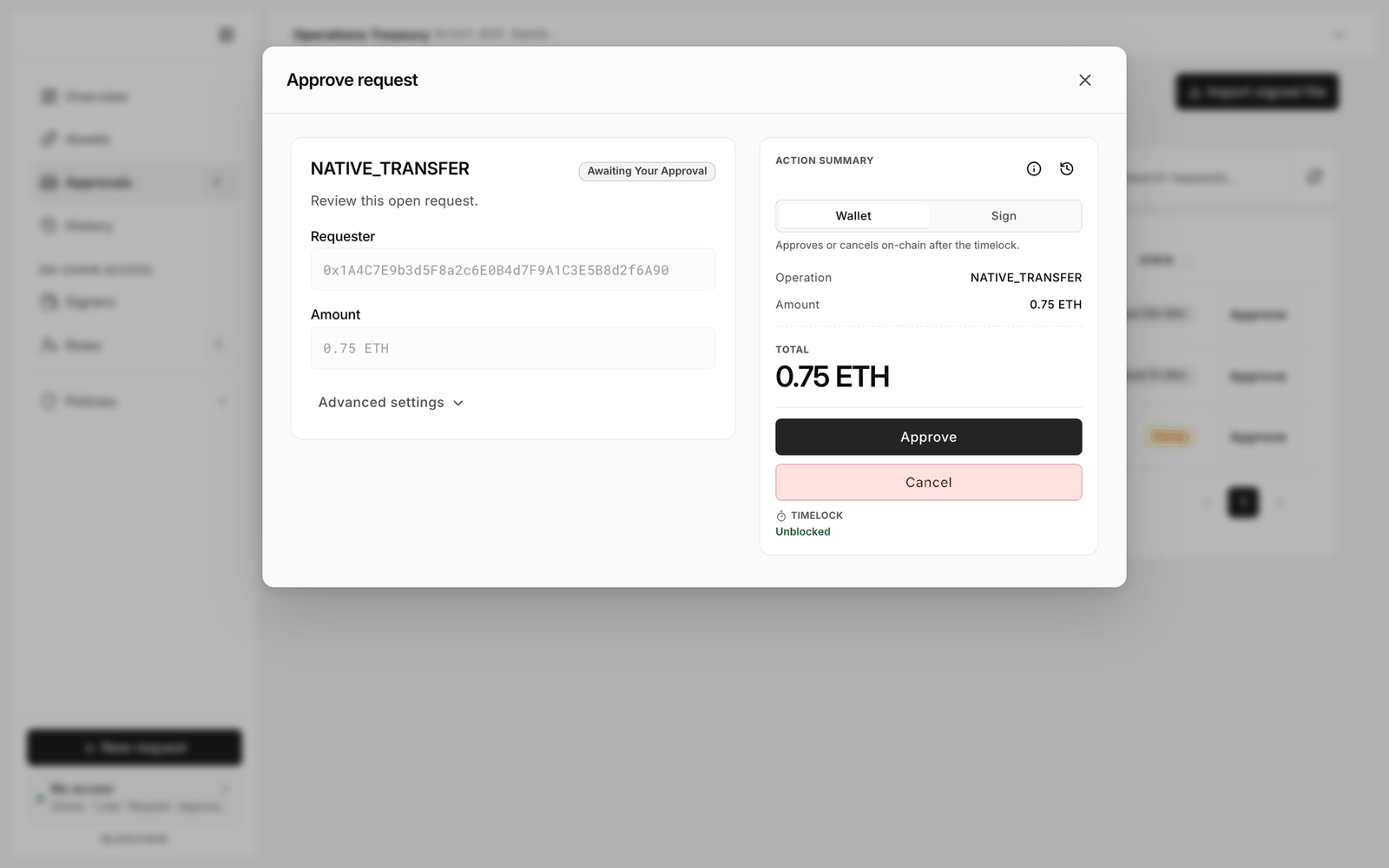
2. Open the row. In **Approve request**, switch the toggle to **Sign** and select **Approve**. Sign in the wallet. The dialog shows how long the signature stays valid (for example **Meta-tx expires in 1h**).

<figure><img src="https://2633730519-files.gitbook.io/~/files/v0/b/gitbook-x-prod.appspot.com/o/spaces%2F0GcVTQuj6X0G3RZ3YY7r%2Fuploads%2Fgit-blob-65d49e631b67dae23e76ec0036360b68687303f8%2F23-approve-request.png?alt=media" alt="Approve request dialog with the Wallet and Sign toggle, Approve and Cancel buttons" width="1000"><figcaption><p>Choose Sign to produce an off-chain approval instead of an on-chain transaction.</p></figcaption></figure>

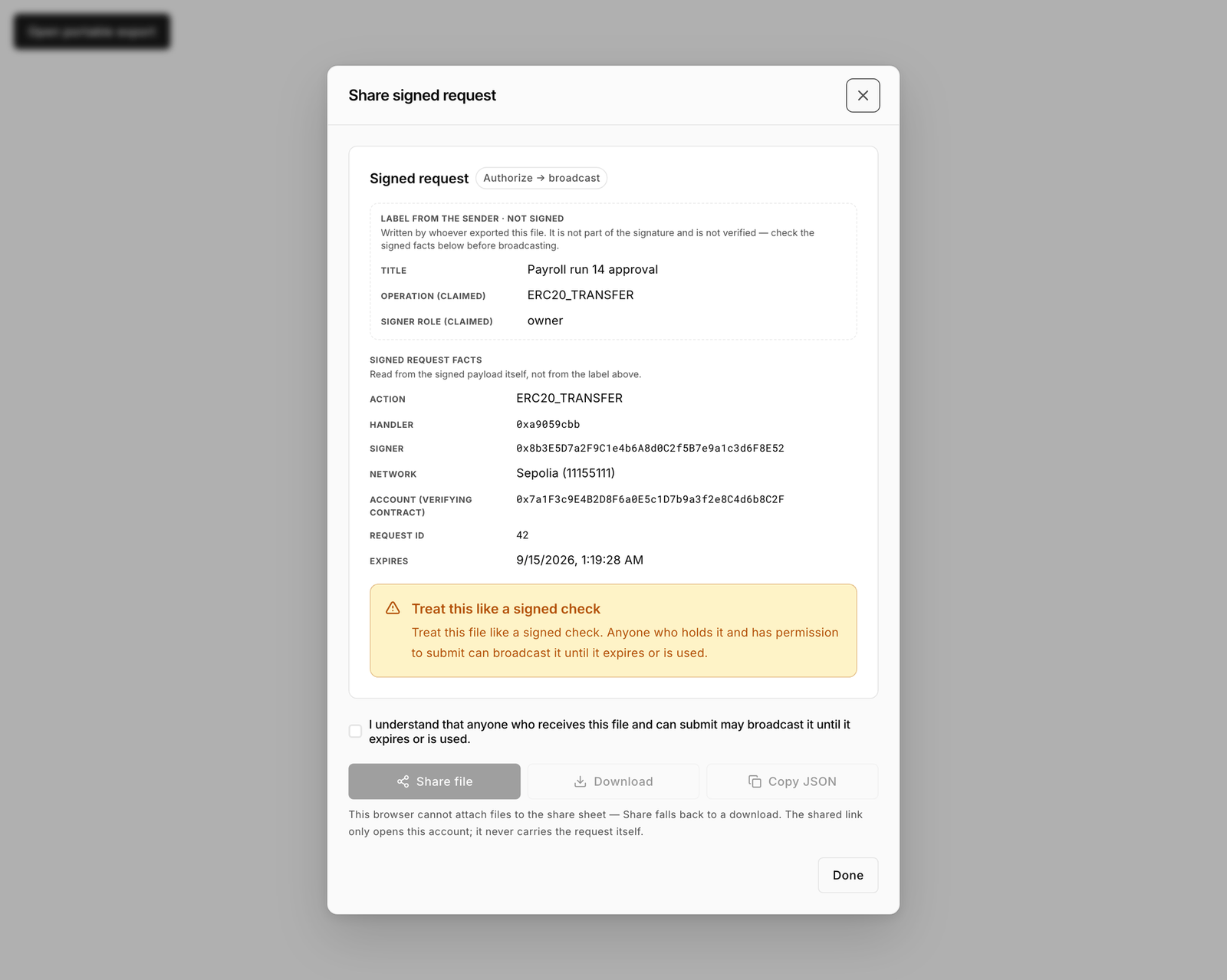
3. Open **Approvals**, switch to the **Approved** tab and open the signed item. In the **Signed transaction** dialog choose **Share to another device**. The **Share signed request** dialog opens. Read the notice and tick **I understand that anyone who receives this file and can submit may broadcast it until it expires or is used.**
4. Select **Download** to save the `.bloxmeta.json` file (or **Copy JSON** if you will paste it).

<figure><img src="https://2633730519-files.gitbook.io/~/files/v0/b/gitbook-x-prod.appspot.com/o/spaces%2F0GcVTQuj6X0G3RZ3YY7r%2Fuploads%2Fgit-blob-5949f66739c567a0d3510c227732bde2fef388de%2F46-share-signed-request.png?alt=media" alt="Share signed request dialog with the acknowledgement checkbox and Share file, Download and Copy JSON buttons" width="1000"><figcaption><p>The acknowledgement is there for a reason: the file is as good as the approval it contains.</p></figcaption></figure>

### 3. Move the file

Transfer the file to the broadcaster's device over a channel you trust: a USB stick for an air-gapped signer, or an end-to-end encrypted message. Do not post it publicly.

### 4. Broadcaster imports and executes

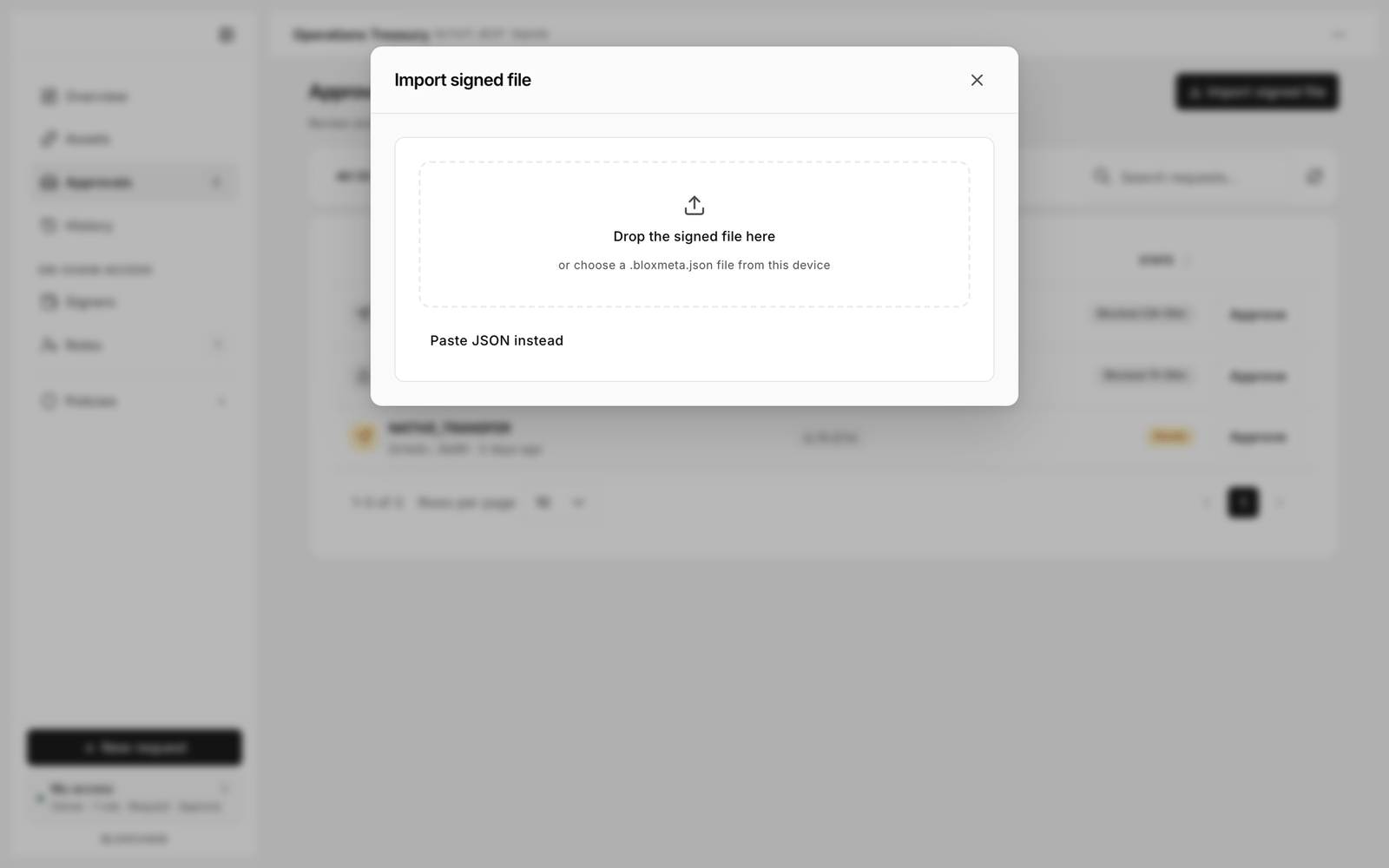
1. On the broadcaster's device, open the account, go to **Approvals** and select **Import signed file**.
2. Drop the file, or select **Paste JSON instead** and paste the content.
3. Review the preview. It decodes the operation, amount and recipient. The heading reminds you to **Treat this like a signed check**.

<figure><img src="https://2633730519-files.gitbook.io/~/files/v0/b/gitbook-x-prod.appspot.com/o/spaces%2F0GcVTQuj6X0G3RZ3YY7r%2Fuploads%2Fgit-blob-53637e32971f69289abb778c0cc7d27284671a80%2F39-import-signed-file.png?alt=media" alt="Import signed file dialog with a drop zone, Paste JSON instead, and a preview" width="1000"><figcaption><p>Check the decoded details before adding the file to Approved.</p></figcaption></figure>

4. Select **Add to Approved**. The item appears on the **Approved** tab.
5. Open it and select **Execute** with the broadcaster wallet connected. The broadcaster pays gas.
6. Confirm **Executed** in **History**.

## Safety rules

{% hint style="danger" %}
A signed file is a bearer instrument. See [Safety rules](/platform-guide/operate/signed-files.md#safety-rules).
{% endhint %}

## If the signature expired

Every signed approval carries an expiry. If the **Approved** row reads **Expired. Execution disabled. Delete this invalid entry.**:

1. Select **Delete** on the broadcaster's device.
2. Ask the approver to open the same request in **Approvals** and sign again. The on-chain request is still pending; only the signature was time-limited.
3. Move the new file and repeat step 4.

If the underlying request has itself been cancelled or already executed, the row shows that state instead, and no new signature is needed.

## Checklist

* [ ] Signed approval path configured with Broadcaster on Execute
* [ ] Approver signed with **Sign**, not **Wallet**
* [ ] File moved over a trusted channel
* [ ] Preview checked before **Add to Approved**
* [ ] Executed by the broadcaster; visible in History

## Related

* [Approvals](/platform-guide/operate/approvals.md)
* [Security best practices](/security/security-best-practices.md)
* [Meta-transactions (Protocol)](/protocol-reference/api-reference/meta-transactions.md)


---

# Agent Instructions
This documentation is published with GitBook. GitBook is the documentation platform designed so that both humans and AI agents can read, navigate, and reason over technical content effectively. Learn more at gitbook.com.

## Querying This Documentation
If you need additional information that is not directly available in this page, you can query the documentation by asking a question.

Perform an HTTP GET request on the following URL with the `ask` and `goal` query parameters:

```
GET https://docs.bloxchain.app/guides/cross-device-approval.md?ask=<question>&goal=<user_goal>
```

`ask` is the immediate question: it should be specific, self-contained, and written in natural language.
`goal` is what the user is ultimately trying to achieve, the reason they need the answer. Sharing it helps GitBook give you a better, more relevant answer. A goal is most helpful when it describes the outcome the user wants rather than restating the question. For example, with `ask=how do I create an API token`, a goal like `automate deployments from our CI pipeline` lets GitBook tailor the answer to that use case.

The response will contain a direct answer to the question and relevant excerpts and sources from the documentation.

Use this mechanism when the answer is not explicitly present in the current page, you need clarification or additional context, or you want to retrieve related documentation sections.