> For the complete documentation index, see [llms.txt](https://docs.bloxchain.app/llms.txt). Markdown versions of documentation pages are available by appending `.md` to page URLs; this page is available as [Markdown](https://docs.bloxchain.app/get-started/quickstart.md).

# Your first smart account

Deploy a governed smart account on Sepolia from the Bloxchain Platform, fund it, and see where everything lives.

**Where:** bloxchain.app → **Accounts → Deploy account** · **You need:** a browser wallet on Sepolia, a little Sepolia test ETH, two spare addresses for Recovery and Broadcaster

**Alpha · Local-first.** This walkthrough uses Sepolia test ETH. The other supported networks are listed in [Supported networks](/introduction/supported-networks.md).

## Before you start

* Install a browser wallet and switch it to **Sepolia**. The Platform reads the network from the connected wallet and locks the deployment to it.
* Use a regular wallet (an EOA), not a smart-contract wallet such as a Safe. The deploy needs almost all of the gas one transaction may use, so only a direct call from a regular wallet fits.
* Get Sepolia test ETH from any public faucet. Deployment plus a few transactions is enough.
* Have two other addresses ready. The **Recovery** address must differ from the Owner, and **Broadcaster** addresses must differ from the Owner too. A second browser wallet account, a hardware wallet or a trusted teammate all work. For a test run, any address you control is fine.
* No sign-in is needed. Your account list is stored in this browser (**This device**).

## Steps

### 1. Connect your wallet

1. Open bloxchain.app and choose **Connect wallet** in the top bar.
2. Approve the connection in your wallet. The button becomes a network pill and your short address. If it says **Wrong network**, switch the wallet to Sepolia.

### 2. Open the deploy dialog

You can start from either place; both open the same dialog.

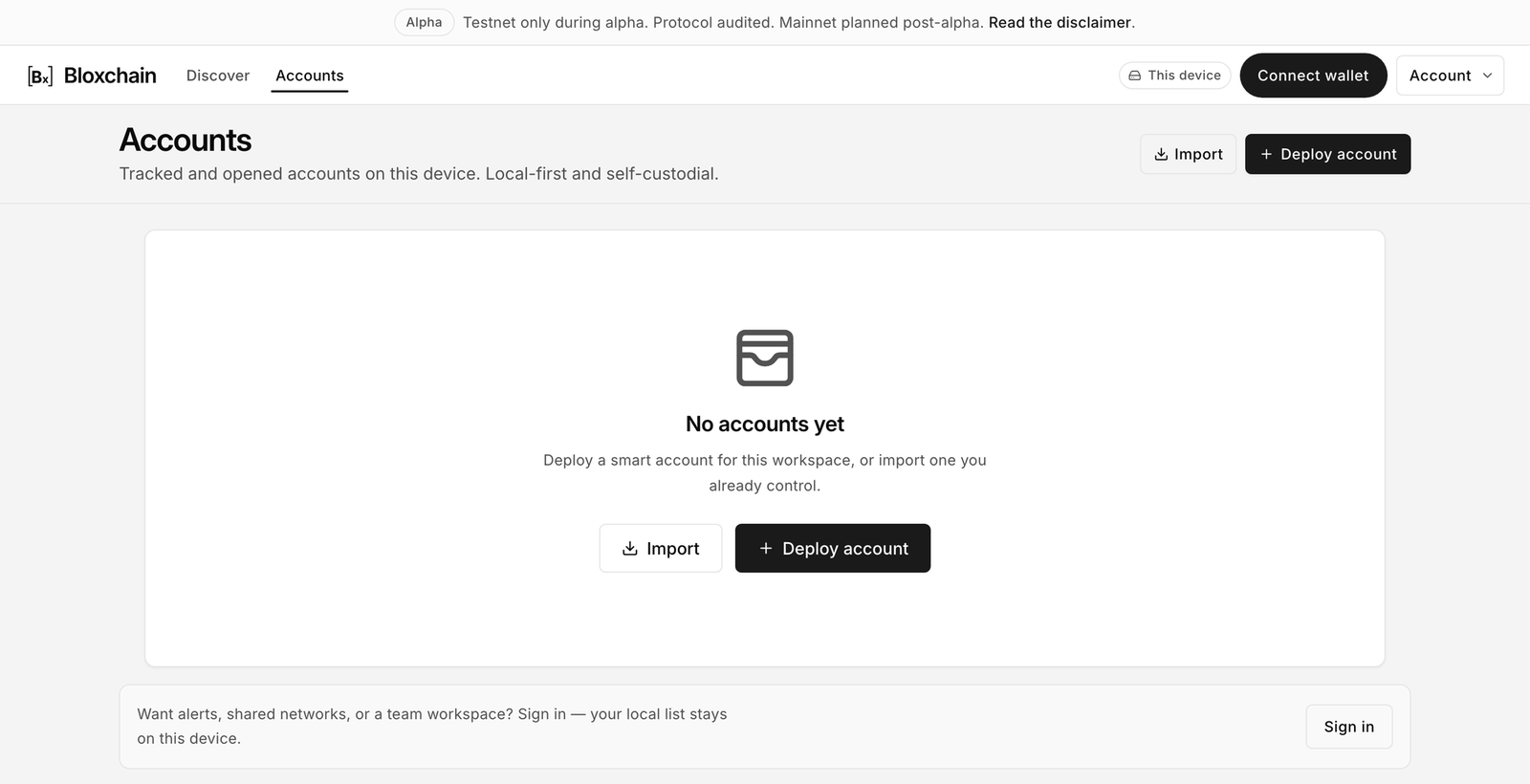
* **Accounts** in the top bar, then **Deploy account**. On a fresh device you see the empty state "No accounts yet".
* **Discover** in the top bar, then pick a preset such as **Personal security** and follow its call to action.

<figure><img src="https://2633730519-files.gitbook.io/~/files/v0/b/gitbook-x-prod.appspot.com/o/spaces%2F0GcVTQuj6X0G3RZ3YY7r%2Fuploads%2Fgit-blob-8f21538be9175dc1ef7a45573d9413907003736a%2F04-accounts-empty.png?alt=media" alt="Accounts page empty state with Import and Deploy account buttons" width="1000"><figcaption><p>Accounts on a fresh device. Deploy account opens the two-step dialog.</p></figcaption></figure>

{% hint style="info" %}
Today every preset deploys the same governed account. Presets describe a job; the capabilities for that job are configured after deployment.
{% endhint %}

### 3. Step 1 of the dialog: name and network

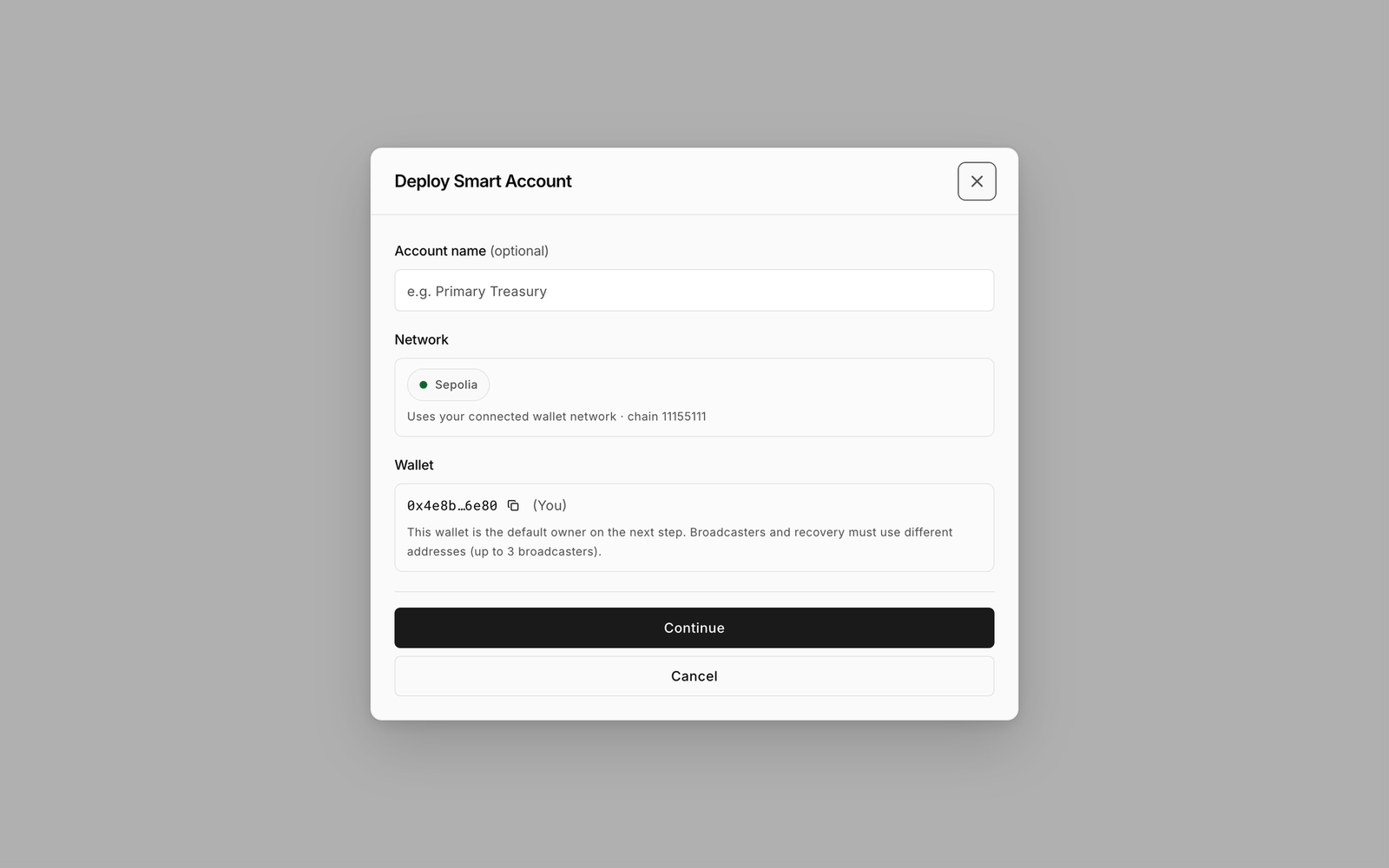
<figure><img src="https://2633730519-files.gitbook.io/~/files/v0/b/gitbook-x-prod.appspot.com/o/spaces%2F0GcVTQuj6X0G3RZ3YY7r%2Fuploads%2Fgit-blob-a54170a5840a4e79554cd7a843a3071ecbbc62f2%2F07-deploy-account-step1.png?alt=media" alt="Deploy Smart Account dialog, step 1, with Account name, Network and Wallet fields" width="1000"><figcaption><p>Step 1 fixes the network to your wallet's chain and shows the wallet that will become Owner.</p></figcaption></figure>

1. **Account name** (optional): a display name stored on this device, for example `Test vault`. You can change it later.
2. **Network**: read-only, taken from your wallet ("Uses your connected wallet network · chain 11155111").
3. **Wallet**: your connected address, marked **(You)**. It becomes the Owner on the next step.
4. Choose **Continue**.

### 4. Step 2 of the dialog: Protocol Security

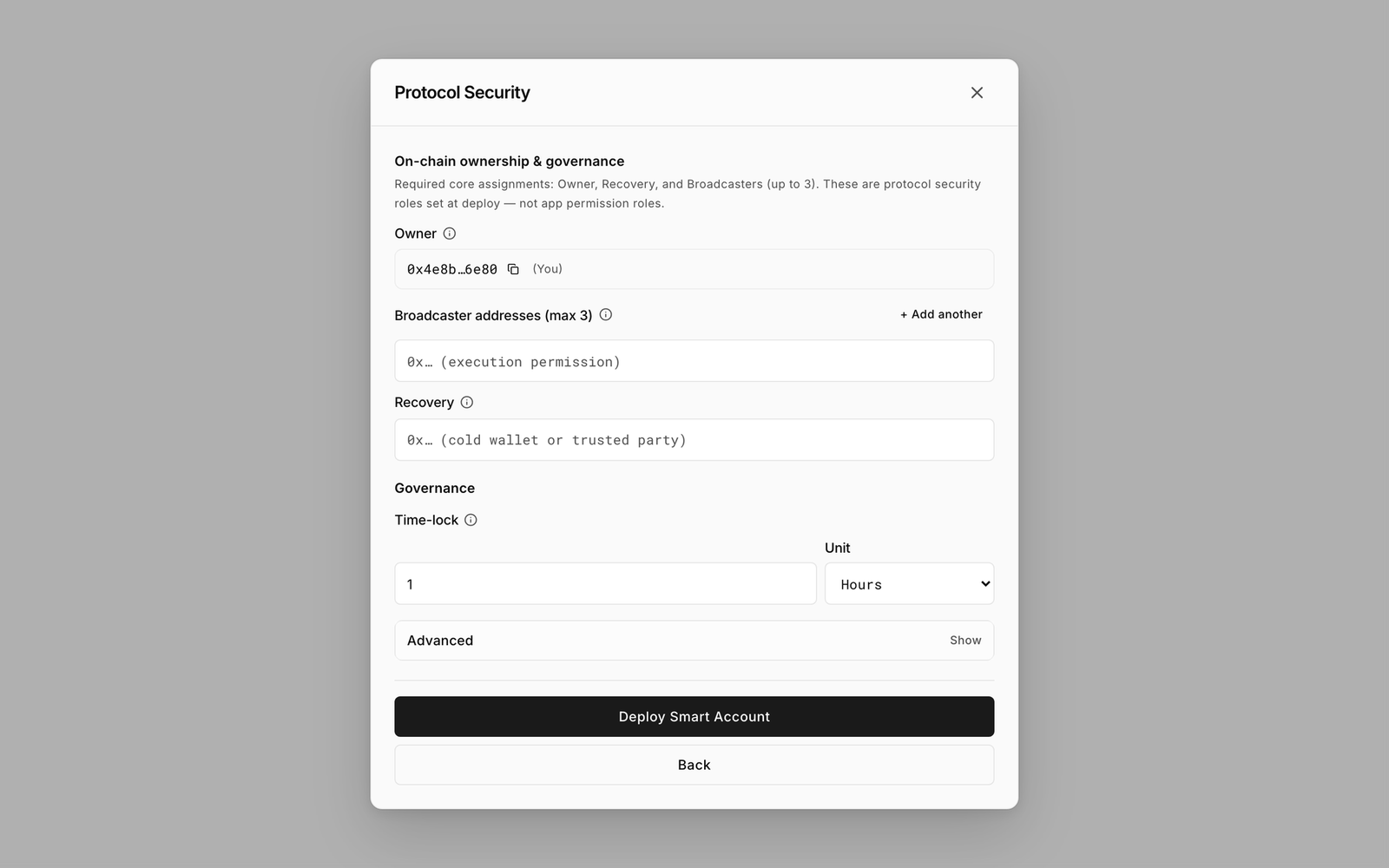
<figure><img src="https://2633730519-files.gitbook.io/~/files/v0/b/gitbook-x-prod.appspot.com/o/spaces%2F0GcVTQuj6X0G3RZ3YY7r%2Fuploads%2Fgit-blob-8ccce1efe07ba44bba15288f6ec51c737e3d92cf%2F08-deploy-account-step2.png?alt=media" alt="Deploy Smart Account dialog, step 2, Protocol Security, with Owner, Broadcaster addresses, Recovery and Time-lock fields" width="1000"><figcaption><p>Step 2 sets the three protected roles and the time lock. These are on-chain security roles, not app permissions.</p></figcaption></figure>

1. **Owner**: your connected wallet. The official factory mints the account only for the wallet that sends the deploy.
2. **Broadcaster addresses**: add one to three addresses that may submit signed transactions and pay their gas. Use **+ Add another** for more than one. Each must be unique and must not be the Owner. Only the **first** address is written on-chain by the deployment; add any others afterwards under **Policies → Security**.
3. **Recovery**: an address that can take ownership in an emergency. Use a cold wallet or a trusted party. It must differ from the Owner.
4. **Governance → Time-lock** and **Unit**: the minimum wait before a delayed request can be approved. The official factory accepts 1 day to 90 days. For a test run choose the shortest, **1** **Days**. For real funds pick a longer wait.
5. Leave **Advanced** alone. The default **Base** shell is right for most accounts. (**Web3** adds EIP-1271 signature verification for external apps and requires a time lock of at least one day.)
6. Choose **Deploy Smart Account**. The dialog shows "Waiting for wallet…"; confirm the transaction in your wallet and pay the gas.

If a field is wrong the dialog tells you exactly what to fix, for example "Owner and Recovery must be different wallet addresses." or "Choose a time-lock greater than zero (for example 1 hour or 15 minutes)."

## What you see

When the transaction confirms, the account opens on **Overview**.

<figure><img src="https://2633730519-files.gitbook.io/~/files/v0/b/gitbook-x-prod.appspot.com/o/spaces%2F0GcVTQuj6X0G3RZ3YY7r%2Fuploads%2Fgit-blob-292058489c6b7e33bd162214056452787384d000%2F20-overview.png?alt=media" alt="Account Overview showing Total balance, Contract security, Holdings and Needs attention cards" width="1000"><figcaption><p>Overview of a freshly opened account. Needs attention (1) will list the setup steps still outstanding.</p></figcaption></figure>

* **Total balance** reads "No balance yet. Receive assets to fund this account."
* **Contract security** lists Owner, Recovery, Time-lock and Broadcasters and should read **Security configured**.
* The left rail shows **Overview**, **Assets**, **Approvals**, **History**, then **ON-CHAIN ACCESS** (**Signers** and **Roles**). **Policies** is its own rail entry below that group, and at the bottom sit **+ New request** and your **My access** card.

Your new account is a **Vault**: it can hold assets, but no action is configured to move them yet. That is the intended starting state. The **Needs attention** card and **Help** list what to configure next.

The account also appears on **Accounts** and has a link of the form `https://bloxchain.app/workspace/11155111/0x…`. Anyone with the link can open it read-only; acting requires a wallet with a role.

## Fund it

1. On **Overview** or **Assets**, choose **Receive**.
2. The **Receive assets** drawer shows a QR code and the smart account address. Scan it with a wallet app or **Copy address**.
3. Send a small amount of Sepolia ETH from your wallet. It appears under **Holdings** once the transfer confirms.

<figure><img src="https://2633730519-files.gitbook.io/~/files/v0/b/gitbook-x-prod.appspot.com/o/spaces%2F0GcVTQuj6X0G3RZ3YY7r%2Fuploads%2Fgit-blob-622bdb9dd491e244a135df52a7465306e1d58af5%2F48-receive-assets.png?alt=media" alt="Receive assets drawer with QR code, Copy address button and network warning" width="1000"><figcaption><p>Receive assets. Only send supported assets on the account's network.</p></figcaption></figure>

{% hint style="warning" %}
Only send assets on the same network as the account. Tokens sent on the wrong network may be lost permanently.
{% endhint %}

## Troubleshooting

| Symptom                                        | Fix                                                                                                                                          |
| ---------------------------------------------- | -------------------------------------------------------------------------------------------------------------------------------------------- |
| **Connect wallet** does nothing                | Unlock the wallet extension, then try again. See [Connect a wallet](/platform-guide/connect-wallet.md).                                      |
| Top bar says **Wrong network**                 | Switch the wallet to Sepolia.                                                                                                                |
| **Continue** is replaced by **Connect wallet** | Step 1 needs a connected wallet to lock the network.                                                                                         |
| Deployment transaction fails                   | Check you have enough Sepolia ETH for gas, that Recovery and Broadcaster differ from Owner, and that you deploy from a regular wallet (EOA). |
| Account missing after clearing browser data    | The list lives on this device. Import it again by address from **Accounts → Import**, or restore a backup from **Settings → Backup**.        |

## Next steps

* [Your first governed request](/get-started/first-request.md): allowlist a recipient, request a transfer, approve it after the time lock.
* [Personal security guide](/guides/personal-security.md) or [Team treasury guide](/guides/team-treasury.md) to configure the account for its job.
* [Backup](/platform-guide/settings/backup.md) to keep a copy of your account list.

## Related

* [Deploy an account](/platform-guide/accounts/deploy.md)
* [Import an account](/platform-guide/accounts/import.md)
* [Overview](/platform-guide/operate/overview.md)
* [How it works](/introduction/how-it-works.md)


---

# Agent Instructions
This documentation is published with GitBook. GitBook is the documentation platform designed so that both humans and AI agents can read, navigate, and reason over technical content effectively. Learn more at gitbook.com.

## Querying This Documentation
If you need additional information that is not directly available in this page, you can query the documentation by asking a question.

Perform an HTTP GET request on the following URL with the `ask` and `goal` query parameters:

```
GET https://docs.bloxchain.app/get-started/quickstart.md?ask=<question>&goal=<user_goal>
```

`ask` is the immediate question: it should be specific, self-contained, and written in natural language.
`goal` is what the user is ultimately trying to achieve, the reason they need the answer. Sharing it helps GitBook give you a better, more relevant answer. A goal is most helpful when it describes the outcome the user wants rather than restating the question. For example, with `ask=how do I create an API token`, a goal like `automate deployments from our CI pipeline` lets GitBook tailor the answer to that use case.

The response will contain a direct answer to the question and relevant excerpts and sources from the documentation.

Use this mechanism when the answer is not explicitly present in the current page, you need clarification or additional context, or you want to retrieve related documentation sections.