> For the complete documentation index, see [llms.txt](https://docs.bloxchain.app/llms.txt). Markdown versions of documentation pages are available by appending `.md` to page URLs; this page is available as [Markdown](https://docs.bloxchain.app/get-started/first-request.md).

# Your first governed request

Send a small transfer from your smart account the governed way: request it, wait out the time lock, approve it, and see it recorded in History.

**Where:** inside your account → **+ New request** · **You need:** a funded account from the [Quickstart](/get-started/quickstart.md), your Owner wallet connected on Sepolia

## Before you start

* **Check My access.** Open your account and choose **My access** (the card at the bottom of the rail, or the ⋯ menu). Under **YOUR ROLES** you should see your address with the **OWNER\_ROLE** chip (chips print the role name exactly as it is stored on-chain), and under **What you can do** the transfer operation at the **Request** and **Approval** phases. If the page says "This wallet is not assigned to any role yet", you are connected with the wrong wallet.
* **Check the action is ready.** Go to **Policies → Actions**. `NATIVE_TRANSFER` (`__bloxchain_native_transfer__()`) is already listed: every account registers it at deploy, so there is nothing to add. What a new account is missing is permissions and an allowlist, which is why the row reads **Flow incomplete**. If it does, open the row and use **Manage permissions** to assign a role to each step, then **Related setup** to close the gaps. See [Actions](/platform-guide/policies/actions.md).
* **Allowlist the recipient.** A transfer can only go to an address on the account's **Recipients** allowlist. An empty list means nothing is allowed. See step 1 below.

## Steps

### 1. Add the recipient to the allowlist

1. In the rail choose **Policies ›**, then under **ALLOWLISTS** choose **Allowed recipients**.
2. Choose **Add recipient**, paste the destination address and confirm.
3. Sign the configuration change with your wallet. Allowlist changes are signed by the owner and take effect once the transaction confirms.

Why first: the recipient picker in the request form lists allowlisted addresses only. If you skip this step the **Recipient** field has nothing to choose, and even a hand-built request would be rejected by the contract at execution.

### 2. Create the request

1. Choose **+ New request** at the bottom of the rail.
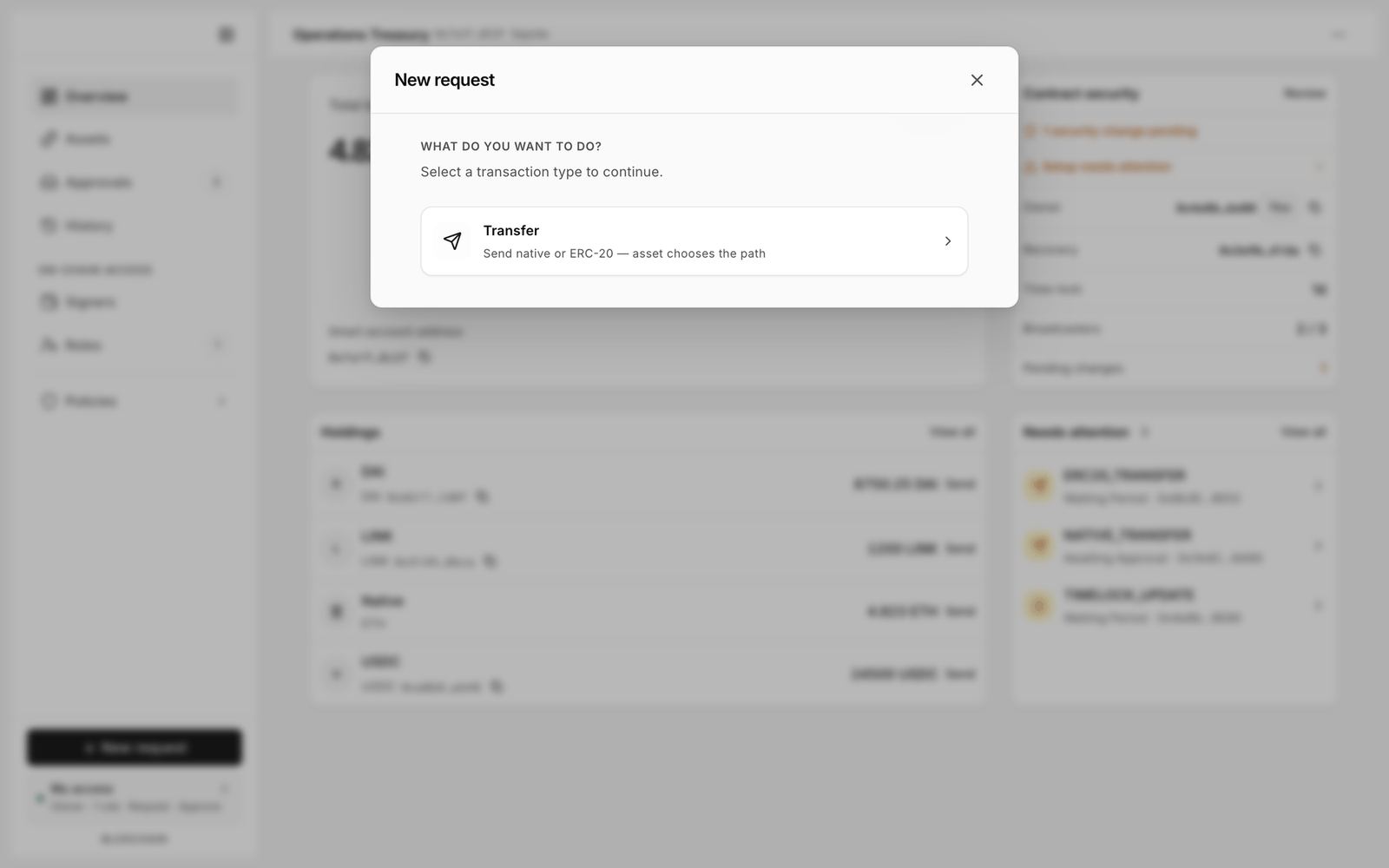
2. Under "WHAT DO YOU WANT TO DO?" pick **Transfer** (send native currency or an ERC-20 token; the asset chooses the path). A card that says **Not configured** needs work in **Actions**; **Not available for this wallet** means your roles do not cover it.

<figure><img src="https://2633730519-files.gitbook.io/~/files/v0/b/gitbook-x-prod.appspot.com/o/spaces%2F0GcVTQuj6X0G3RZ3YY7r%2Fuploads%2Fgit-blob-db7f6c04e47a2933810816d981754228a74d9cd2%2F25-new-request.png?alt=media" alt="New request modal asking what you want to do, with a single Transfer card reading Send native or ERC-20" width="1000"><figcaption><p>Choose the transaction type. Only one card appears here because this account has registered no mint or burn function.</p></figcaption></figure>

3. Fill the form:
   * **Asset**: the native asset (Sepolia ETH) for this first run.
   * **Amount**: a small value. **Available** shows the balance; **MAX** fills it.
   * **Recipient**: pick the address you allowlisted.
   * Leave **Advanced settings** (gas limit and similar) at their defaults.
4. In the **ACTION SUMMARY** card, the **Wallet | Sign** toggle appears if the action allows both paths. Choose **Wallet** for this walkthrough. **Wallet** posts the request on-chain and starts the time lock (the Delayed release path). **Sign** would instead produce a signed meta-transaction for a broadcaster to submit before it expires.
5. Choose **Submit request** and confirm in your wallet.

<figure><img src="https://2633730519-files.gitbook.io/~/files/v0/b/gitbook-x-prod.appspot.com/o/spaces%2F0GcVTQuj6X0G3RZ3YY7r%2Fuploads%2Fgit-blob-6b5efbf40f34a346d06107d39b17f08b51230c55%2F26-new-request-transfer.png?alt=media" alt="Transfer form headed NATIVE_TRANSFER with Asset, Amount and Recipient fields and the Action summary card" width="1000"><figcaption><p>The Transfer form. Choosing the native asset resolves the request to NATIVE_TRANSFER, shown as the Operation in the Action summary.</p></figcaption></figure>

### 3. Watch it in Approvals

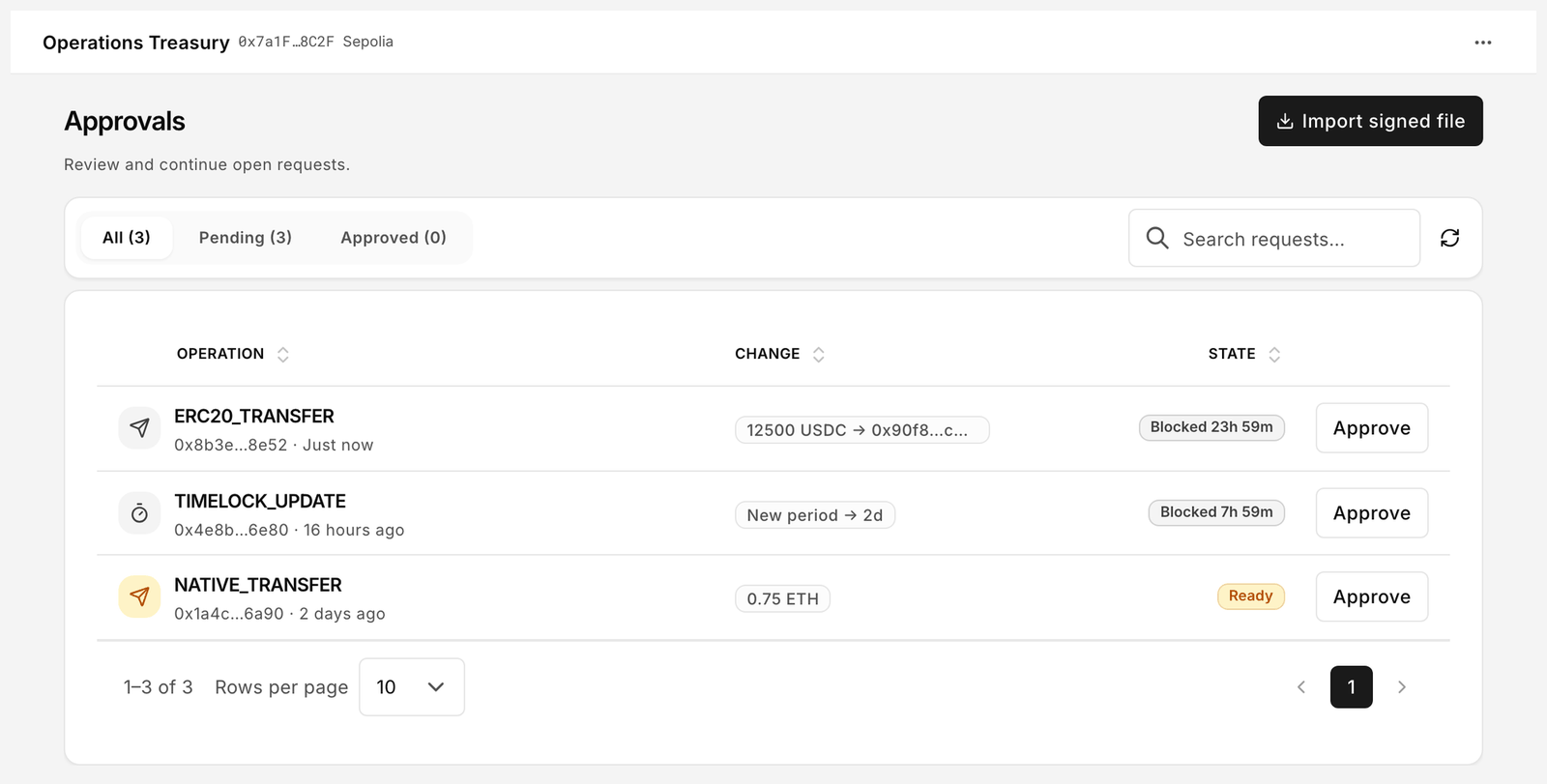
Open **Approvals** in the rail. Your request is listed under **Pending** with the **Operation**, the **Change** (asset, amount, recipient) and a **State** of **Blocked** with the remaining time. The row status reads **Waiting Period**. The **Approvals** badge in the rail shows the open count.

<figure><img src="https://2633730519-files.gitbook.io/~/files/v0/b/gitbook-x-prod.appspot.com/o/spaces%2F0GcVTQuj6X0G3RZ3YY7r%2Fuploads%2Fgit-blob-f07c2af3d8a8cdf1c7c2bb346e43108126df891f%2F22-approvals.png?alt=media" alt="Approvals page listing one pending Transfer with its state and action button" width="1000"><figcaption><p>Approvals while the time lock runs. The request can be cancelled, but not approved yet.</p></figcaption></figure>

While the time lock runs you (or anyone with the cancel permission) can open the row and **Cancel**. This is the window that lets you undo a transfer you did not mean.

### 4. Approve after the time lock

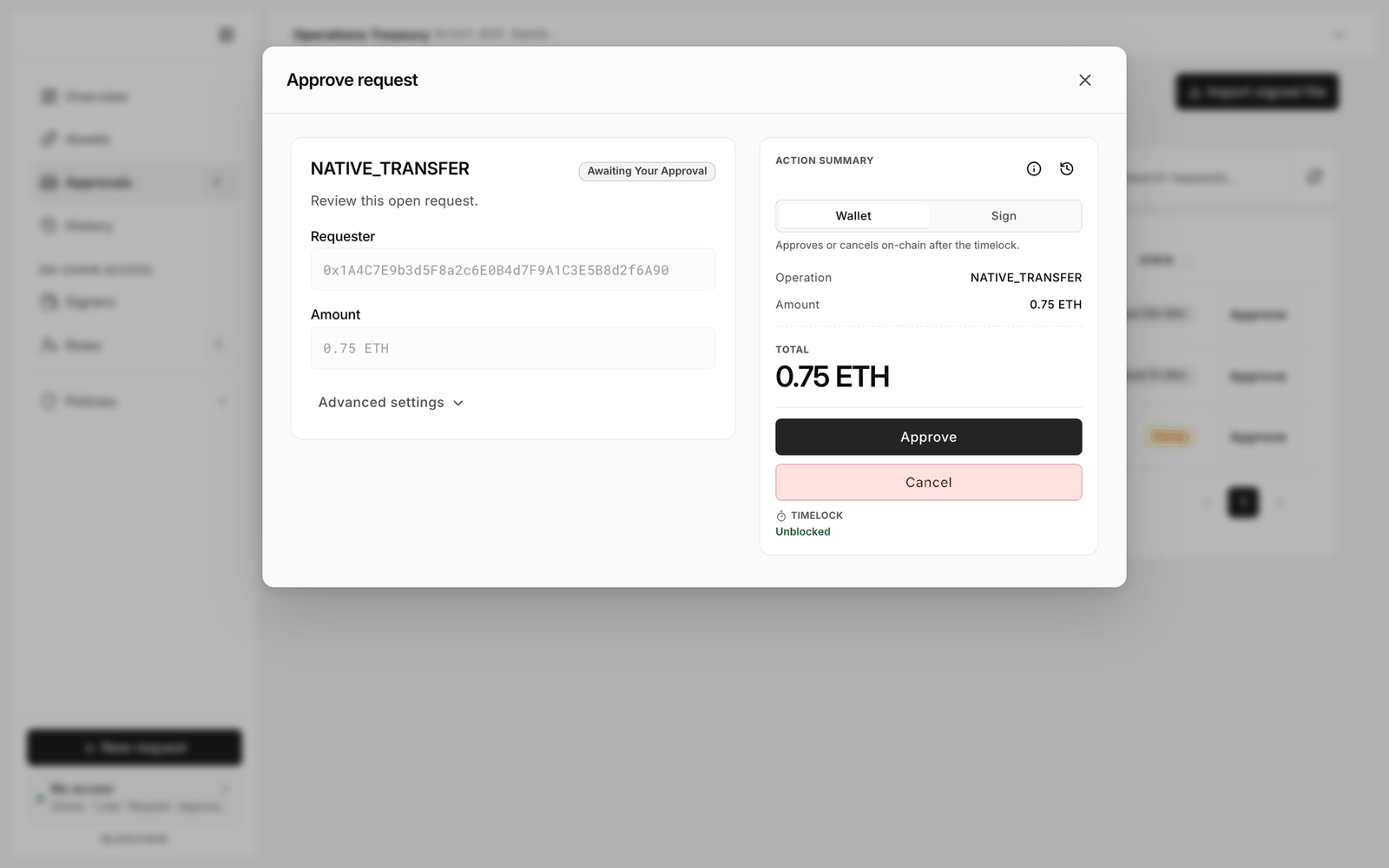
1. When the **State** turns to **Ready** (status **Awaiting Approval** or **Awaiting Your Approval**), open the row. The **Approve request** dialog shows the **Requester**, the decoded parameters and a **TIMELOCK** indicator that now reads **Unblocked**.
2. Review the details. **Summary**, **Details** and **Activity** show the same request from different angles.
3. Keep **Wallet** selected in the **ACTION SUMMARY** and choose **Approve**. Confirm in your wallet.

<figure><img src="https://2633730519-files.gitbook.io/~/files/v0/b/gitbook-x-prod.appspot.com/o/spaces%2F0GcVTQuj6X0G3RZ3YY7r%2Fuploads%2Fgit-blob-65d49e631b67dae23e76ec0036360b68687303f8%2F23-approve-request.png?alt=media" alt="Approve request dialog with the requester address, the Wallet and Sign toggle, enabled Approve and Cancel buttons and the TIMELOCK indicator" width="1000"><figcaption><p>Approve request. Approving on the Wallet path executes the transfer in the same transaction.</p></figcaption></figure>

On the Delayed release path, approving executes. The status moves through **Executing** and **Pending Confirmation** to **Executed**. If you had chosen **Sign**, the signed approval would appear under the **Approved** tab as a **Signed transaction**, and a broadcaster would choose **Execute** to submit it.

### 5. See it in History

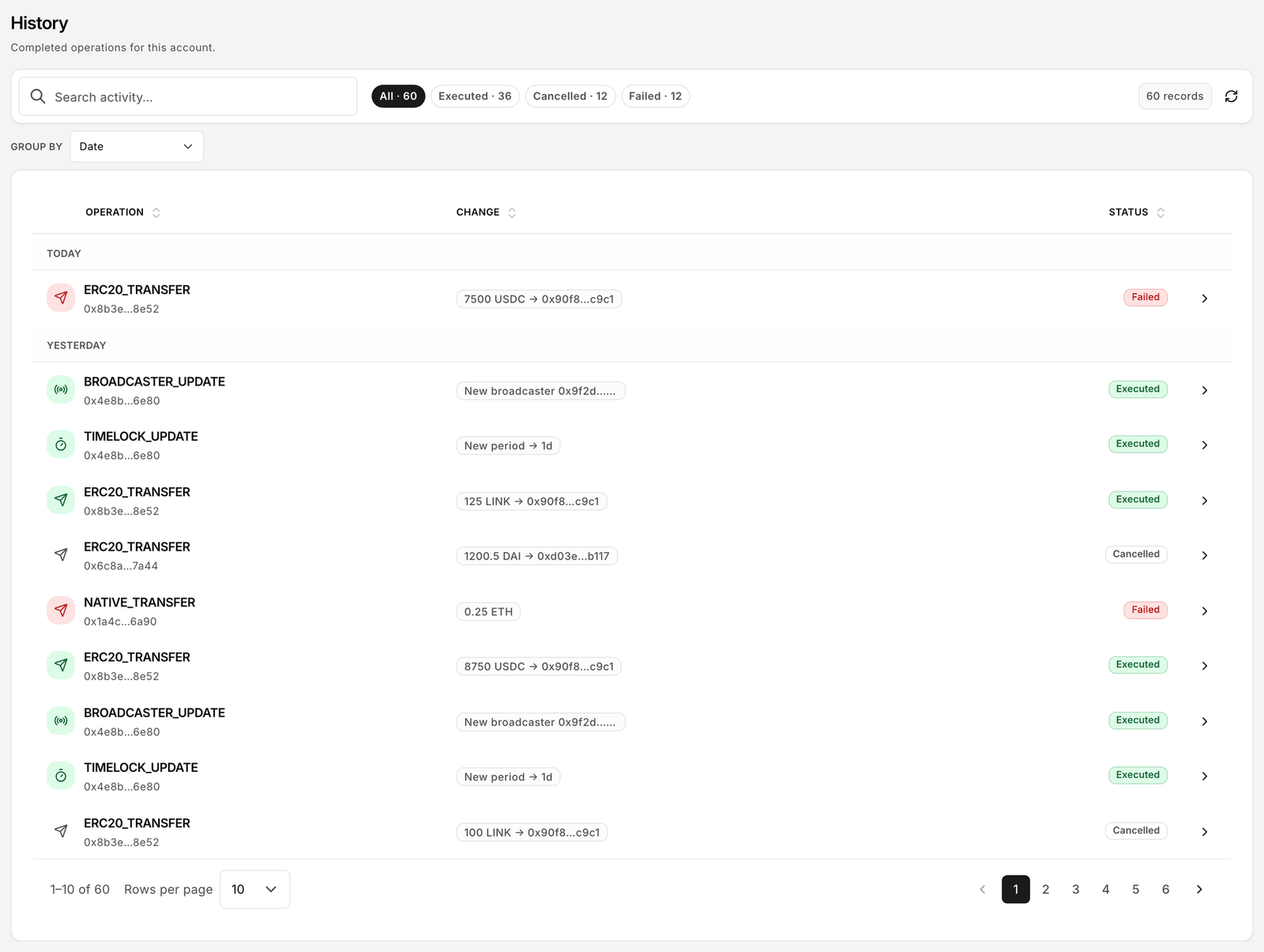
Open **History**. The transfer is listed with **Status** **Executed**. Filter by **Executed**, **Cancelled** or **Failed**, or group by **Date**, **Result**, **Operation** or **Requester**. Choose the row for the full detail, including the on-chain transaction.

<figure><img src="https://2633730519-files.gitbook.io/~/files/v0/b/gitbook-x-prod.appspot.com/o/spaces%2F0GcVTQuj6X0G3RZ3YY7r%2Fuploads%2Fgit-blob-b04a347ed180a78735f2841606123a84e79f53b3%2F24-history.png?alt=media" alt="History page listing completed operations with Operation, Change and Status columns" width="1000"><figcaption><p>History records every settled request for the life of the account.</p></figcaption></figure>

The recipient's balance on Sepolia now includes the amount, and **Assets** shows the reduced holding.

## Why was my request denied?

| Symptom                                                                     | Likely cause                                                                                        | Fix                                                                  |
| --------------------------------------------------------------------------- | --------------------------------------------------------------------------------------------------- | -------------------------------------------------------------------- |
| Transfer card is disabled: **Not configured**                               | `NATIVE_TRANSFER` is registered but shows **Flow incomplete**; no role can perform one of its steps | **Policies → Actions**, open the action, **Manage permissions**      |
| Transfer card is disabled: **Not available for this wallet**                | Your wallet holds no role that may request this action                                              | Connect the right wallet, or have an admin add you under **Signers** |
| "This wallet cannot start a request with Wallet or Sign for this function." | Same as above, or the role has the permission but not the gate                                      | Check **My access**, then **Policies → Gates**                       |
| **Recipient** has nothing to choose                                         | The recipient allowlist is empty                                                                    | **Policies → Allowed recipients → Add recipient**                    |
| **Approve** is disabled                                                     | Time lock still running (**Blocked**)                                                               | Wait for **Ready**                                                   |
| Request shows **Failed** in History                                         | The action ran and reverted, for example insufficient balance at execution                          | Check **Assets**, then request again                                 |

## Related

* [New request](/platform-guide/operate/new-request.md)
* [Approvals](/platform-guide/operate/approvals.md)
* [History](/platform-guide/operate/history.md)
* [My access](/platform-guide/operate/my-access.md)


---

# Agent Instructions
This documentation is published with GitBook. GitBook is the documentation platform designed so that both humans and AI agents can read, navigate, and reason over technical content effectively. Learn more at gitbook.com.

## Querying This Documentation
If you need additional information that is not directly available in this page, you can query the documentation by asking a question.

Perform an HTTP GET request on the following URL with the `ask` and `goal` query parameters:

```
GET https://docs.bloxchain.app/get-started/first-request.md?ask=<question>&goal=<user_goal>
```

`ask` is the immediate question: it should be specific, self-contained, and written in natural language.
`goal` is what the user is ultimately trying to achieve, the reason they need the answer. Sharing it helps GitBook give you a better, more relevant answer. A goal is most helpful when it describes the outcome the user wants rather than restating the question. For example, with `ask=how do I create an API token`, a goal like `automate deployments from our CI pipeline` lets GitBook tailor the answer to that use case.

The response will contain a direct answer to the question and relevant excerpts and sources from the documentation.

Use this mechanism when the answer is not explicitly present in the current page, you need clarification or additional context, or you want to retrieve related documentation sections.